Ä¢¹½TV

Digital Learning Blog

Canvas Templates from Digital Learning

Canvas Templates from Digital Learning

September 30, 2026 / Digital Learning / Tags: Canvas, Digital Learning

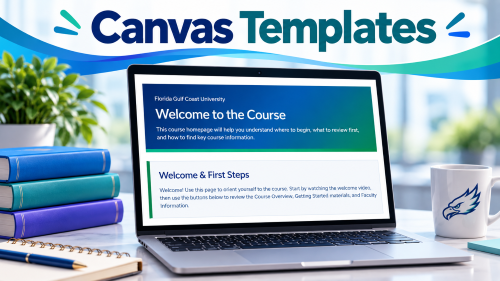
The Digital Learning Department has created Canvas course templates to help you build effective online, face-to-face, and hybrid courses. These templates include best-practice design elements that support student success, along with resources to help you get started in Canvas. Our template options are fully accessible and aligned with Universal Design for Learning (UDL) and WCAG 2.2 Web Accessibility Standards. Both versions can be easily personalized to fit your specific instructional needs. Template Features Ready-to-Use Course Structure - Grounded in Best Practices Skip the guesswork and the build time - research-informed course design is already in place as a starting point, so student success is built into the framework from day one. Built-In Student Support Resources - Ready to Go, Fully Editable Support tools and resources are already embedded as a starting point, saving you the time of building them from scratch. You can use them as-is or adjust to fit your course. Engagement & Learning Reflection Tools - Pre-Built Ideas, Yours to Adapt These are sample activities, not fixed requirements. You can use them as-is, tweak the prompts, or swap in your own approach without starting from a blank page. Template Options Canvas Online Course Template This template is best used by faculty for asynchronous and synchronous online courses. See the brief video overview of this template below: Canvas Online Course Template Video Overview Canvas Technology Enhanced Course Template This template can be used by faculty who teach face-to-face or hybrid courses. Watch this brief video overview of our technology enhanced course template: Canvas Techonology Enhanced Template Video Overview Where To Find Information Ä¢¹½TV the Canvas Templates Information about the Canvas Templates can be found on the Digital Learning website. Canvas Course Templates Location Both templates can be found through Canvas Commons. Please note that to access Canvas Commons you must be logged into Canvas. Refer to the How do I Import and View a Commons Resource for further support. If you have any questions, contact your Instructional Designer.

QM AI Summer Camp

QM AI Summer Camp

September 15, 2026 / Digital Learning / Tags: AI, Digital Learning, Quality Matters

Over the summer, Ä¢¹½TV Instructional Designers participated in a two-part Quality Matters (QM) AI Summer Camp exploring the evolving role of artificial intelligence in higher education. Through discussions of AI foundations and engagement-focused strategies, participants examined: Intentional design and framework-driven decision-making for AI integration The importance of instructor presence and student engagement Bias awareness, transparency, and responsible AI use Critical evaluation of AI-generated content for accuracy, credibility, and fairness Strategies for creating meaningful, accessible, and authentic learning experiences The training reinforced using AI as a thinking partner that supports, rather than replaces, human expertise. AI-generated content can contain inaccuracies, bias, or "workslop" that lacks meaningful pedagogical value. Instructors were encouraged to critically evaluate outputs and intentionally align AI-generated materials with course goals, student learning outcomes, and quality learning experiences. Key Takeaways 1. Use Frameworks to Guide Decisions SAMR, TPACK, and PICRAT provide lenses for determining how AI supports learning and whether its use adds meaningful pedagogical value. These frameworks can help educators make informed decisions about when and how AI can enhance learning experiences. Rather than simply asking whether AI was used, participants were encouraged to focus on how AI supports student learning and why its use matters from a pedagogical perspective. 2. Prioritize Presence Over Technology A key message throughout the training was that presence matters more than technology. The Three-Layer Presence Model highlighted three types of presence that contribute to student success: instructor, social, and cognitive presence. These are also present in the Community of Inquiry framework. When used intentionally, AI can support these areas by helping instructors create welcoming course introductions, foster community, and provide personalized learning experiences that help students feel supported and connected.   3. Create Authentic Learning Experiences Authentic learning requires authentic thinking, and interactive content should be realistic, actionable, and meaningful. AI can assist instructors by generating role-specific examples, scenarios, and activities that connect course concepts to students' experiences, professional goals, and future careers. The training emphasized auditing all outputs for alignment, accessibility, and intentionality. Universal Design for Learning (UDL) principles can be used to evaluate whether content offers multiple ways to engage with material, demonstrate learning, and remain relevant to diverse learners. Overall Message Effective AI integration requires intentional design, human oversight, critical evaluation, and a continuous focus on student learning, engagement, accessibility, and instructional quality. The QM Summer Camp reinforced that effective AI integration begins with purposeful, student-centered design. When thoughtfully implemented and carefully evaluated, AI can strengthen engagement, support meaningful learning experiences, and help instructors build stronger connections with their students. If you have any questions, reach out to your Instructional Designer for support. 

Using Microsoft Copilot's Teach Tool to Draft and Revise Course Materials

Using Microsoft Copilot's Teach Tool to Draft and Revise Course Materials

September 01, 2026 / Digital Learning / Tag: elevate with AI

Designing effective course materials takes time, whether you are creating something new, updating materials, or looking for new ideas. Microsoft Copilot’s Teach tool offers another option. Faculty can use it to draft and revise teaching materials that support alignment, accessibility, and more intentional student learning experiences. What Is It? Teach is a feature in the Microsoft Copilot 365 app that helps educators create and revise teaching materials. Faculty can use it to draft lesson plans, quizzes, rubrics, flashcards, and other instructional resources. It can also help adjust materials by reading level, length, language, difficulty, or alignment with standards. The instructor still makes the instructional decisions. Teach can provide ideas and first drafts, but the faculty decides what is accurate, appropriate, and useful for their students. How Can Faculty Use It? Faculty might start with one small task, such as revising an assignment prompt, creating practice questions, or drafting a rubric. Teach works best when paired with a clear learning goal. For example: Course Learning Outcome: Students will be able to identify and evaluate ethical concerns in workplace communication scenarios. Using that outcome, an instructor could ask Teach to create: Six scenario-based quiz questions that help students practice identifying ethical concerns in workplace communication. This helps keep the focus on what students should be able to do, not just what content should be covered. Faculty might use Teach for: â—� Quiz or Knowledge check Example: Ask Teach to create a short set of scenario-based quiz questions connected to a learning outcome. Faculty can revise the questions for accuracy, adjust the level of difficulty, and add feedback for common misconceptions. â—� Rubric drafts Example: Ask Teach to draft a rubric for a group presentation, including criteria such as analysis, use of evidence, organization, presentation clarity, and teamwork. â—� Material Adjustments Example: Ask Teach to shorten a complex assignment description, adjust the reading level, or create a checklist version of the directions. This can help students better understand the task before they begin. â—� Lesson plan drafts Example: Ask Teach to draft a lesson outline for a class session connected to a specific learning outcome. Faculty can adjust the timing, activities, and examples to fit their course. The goal is not to replace instructor expertise. Instead, Teach provides a starting point that faculty can review, revise, and tailor to ensure the content is accurate, aligned with course outcomes, and appropriate for their students. Getting Started All faculty have access to Copilot through their Ä¢¹½TV Microsoft 365 account. To explore Teach, open the Microsoft 365 Copilot app and search for the “Teachâ€� tool. Microsoft’s guide linked below provides additional steps. Before sharing AI-generated materials with students, review them for accuracy, alignment with your learning outcomes, appropriate difficulty, and clarity. When appropriate, consider adding a brief transparency note, such as: “This material was drafted with support from Microsoft Copilot and reviewed by the instructor before being shared with the class.â€� Guide: Teach in the Microsoft 365 Copilot App ________________________________________This post was created with support from generative AI tools to help draft and organize content. All information has been reviewed, edited, and tailored by the author to ensure accuracy and relevance for Ä¢¹½TV faculty. This approach reflects our commitment to transparent, intentional use of AI i