
Snippets List
蘑菇TV Website UI Elements & Documentation
This section provides helpful information on learning how to use snippets in a variety of ways or provide a showcase of what's possible with some of our more advanced snippets.
Note: Detail Page snippets can be used on Landing Pages.
What is a Snippet?
Snippets are building blocks for designing a page.
They can be viewed and selected by editing a page, then clicking the puzzle-piece
icon in the toolbar.
They are built using a table that transforms the table's rows and columns into different displays based on the information placed into the snippet.
Snippet Structure
The snippet's instructions can be found by double clicking the snippet header.

Header: The snippet's instructions can be found by double clicking the snippet name.
Properties: This is the second row on the snippet if it's available. It has a light gray background like the header. To find out if the snippet you're using has properties or what properties are available for that snippet, double click the header of the snippet.
Instructions: The dark gray fields will give you instructions on what to fill-in on the cell underneath it. If it's asking for an image with a specific size, make sure to use the same dimensions that it's requesting. It also may tell you to type in specific information like "Name" or "Button". A button would require a hyper linked item.
Check our Snippet Replacement Guide for our recommendations on moving to the refreshed snippets.
Updates:
- The News Snippet is currently down and is currently being rebuilt with urgency.
- Phase 3 - Content Snippets* have been redesigned in appearance only. The functionality of the snippets and documentation will continue to be improved in the coming weeks.
* The Contact snippet has not been redesigned yet and will require additional time.
Detail Page - General Snippets
-
Accordion
Toggle More Info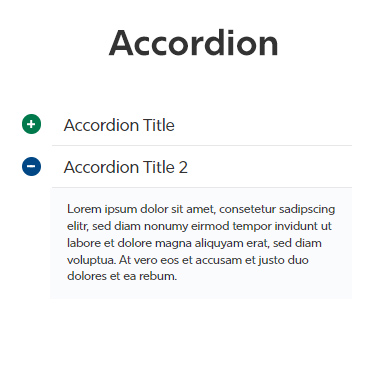
Overview:
This snippet is designed to reveal information that is relevant to a single topic, usually related to the header it is under. When the user clicks on the '+' icon, the hidden content will be revealed.
SEO Best Uses:
Use sparingly, hiding content is not good for SEO and accordion content should have topics that relate to the heading immediately above it. Important information should never be hidden and hidden content may need to be questioned whether it's relevant.
Functionality:
Right click and add new row to add more accordions or remove rows to delete rows that are not needed.
Character Count:
Per an Accordion, Max of 3,000 Characters, Min of 300 Characters
Additional Properties: (Recommended)
- backtotop: adds a back to top button inside each accordion.
- expandall: includes an expand all button in the top right corner of the accordion.
Note: If there's only 1 accordion, the snippet will remove the Expand All feature.
-
Show More
Toggle More Info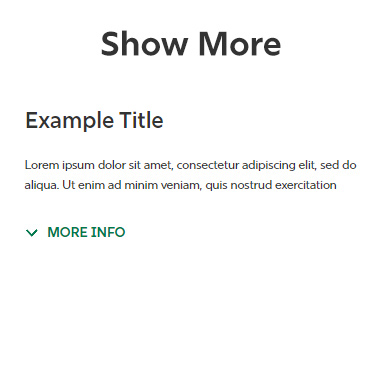
Overview:
Similar to the accordion, the content is revealed when the user expands the 'more info' button. When attempting to use an accordion for a single field, think about using this snippet as an alterative.
SEO Best Uses:
Use sparingly, hiding content is not good for SEO. Important information should never be hidden and hidden content may need to be questioned whether it's relevant.
Functionality:
Put exposed content in the left column of the snippet, and in the right column, insert the content that will be revealed when clicking more info.
Character Count: (Recommended)
Max of 5,000 Characters, Min of 500 Characters
Additional Properties:
None
-
Table
Toggle More Info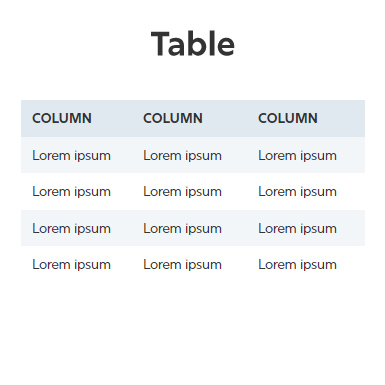
Overview:
This table will properly stack on mobile. Using a non-snippet table will run off the page on mobile.
Note: Non-snippet tables are designed only for snippets to be transformed inside of, so a snippet table is a requirement for creating functional tables.SEO Best Uses:
Tables are best used for data rather than for layout purposes. A table should have related cells to the column heading they're under and the entire table should be relevant to the page content.
Functionality:
Right-click and 'Insert Row After' to generate a new table row. The same can be done by adding a new column using the 'Insert Column After' option. Rows and columns can also be cut, copied, or deleted in the same way.
Character Count: (Recommended)
Tables generally perform best with around 5-10 rows. For every cell added in a column or row, the mobile height grows taller. Use the search and pagination properties for larger amounts of data.
Additional Properties:
- search: Adds a search box that appears above the table.
- filter: Adds a dropdown menu to each column for filtering down the cells.
- pagination: Limits large amounts of table rows into pages, similar to the directory.
- desc#: Adds descending sorting on the column number applied.
Example: for sorting column 1, desc0 would be used. - asc#: Adds ascending sorting on the column number applied.
Example: for sorting column 2, asc1 would be used.
-
Quick Note
Toggle More Info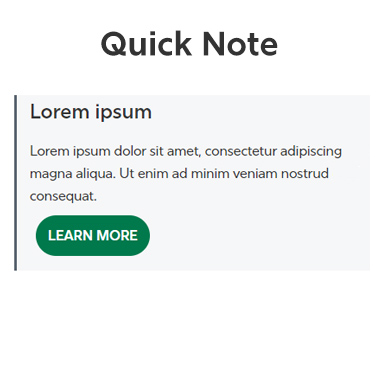
Overview:
Used for displaying a side note in a gray box, useful for calling attention to a minor detail or something of lesser importance.
SEO Best Uses:
Use sparingly on a page, the more times the snippet is used, the less effective the quick note becomes.
Functionality:
The title and link are not required, this snippet best works in detail pages or in Two-Thirds Container snippet, in the 1/3 column.
Character Count: (Recommended)
Max of 400 Characters, Min of 100 Characters. Title and Button, use less, if possible.
Additional Properties:
None
-
Video
Toggle More Info
Overview:
This video snippet uses youtube to embed videos onto a page. Other videos platforms will not work with this snippet.
SEO Best Uses:
Use this snippet very sparingly, multiple videos on a single page will greatly reduce the chances of any of the videos being played. Do not embed YouTube videos through normal methods, this video snippet will not start downloading the video when a user loads the page, like it would with YouTube's generic embed method.
Functionality:
Thumbnail:
The thumbnail will automatically render if the image is removed from the snippet AND YouTube has an existing high-quality thumbnail. If the image returns as a gray image, the owner of the YouTube channel will need to upload a 1920x1080 thumbnail to YouTube.
Alternatively, an image can be added to the left column of the snippet at a size of 780x 440px. Remember to publish the image to make sure the thumbnail renders.Video URL:
Edit the Video URL link by right-clicking, then 'insert link'. The YouTube link needs to be in the format of 'youtube.com/embed/apBzGPc1Zi4'.Character Count:
None
Additional Properties:
Use the word popup to have the video open in a popup box when a user clicks the video.
Landing Page - Content Snippets
-
Cards
Toggle More Info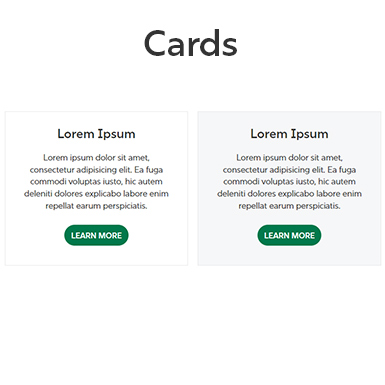
Overview:
Used to display content in an organized group format. It allows you to arrange various elements, such as text and images, within a defined layout. This ensures that the content is presented cohesively and aesthetically, making it easier for users to navigate and understand the grouped information.
Properties:
Even : Arrange the cards into white and then gray
Odd : Arrange the cards into gray and then white
None : One solid color white
-
Contact
Toggle More Info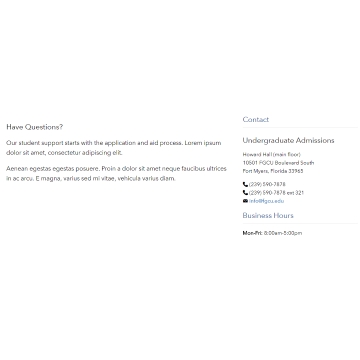
Overview:
This snippet is ideal for providing contact information for a department or a single contact person for the entire department. It works well at the bottom of homepages or about pages.
Functionality:
This is a two-thirds container contact snippet. The left side features a "Have Questions" section, which can be customized to include any message you'd like. It's a perfect spot for a short message. On the right side, you can display your contact info, such as name, phone number, address, and business hours.
-
Quick Facts
Toggle More Info
Overview:
The "Quick Facts" snippet is an efficient way to present important numerical data prominently on your webpage. It's particularly useful for illustrating statistics such as the number of enrolled students, the variety of undergraduate programs, or the breadth of your faculty. The possibilities for using this snippet are virtually endless, making it a flexible tool for conveying significant information quickly and effectively.
SEO Best Uses:
To optimize the "Quick Facts" snippet for SEO, integrate your target keywords naturally within the text accompanying each statistic, such as, "Over 10,000 students enrolled in our programs." Use schema markup to provide context, enhancing the snippet's chances of appearing as a rich result in search engines. Regularly update your numbers to maintain relevance and freshness.
Functionality:
The "Quick Facts" snippet is designed to display up to four key numbers prominently. If you need to showcase more statistics, simply add another "Quick Facts" snippet. Each box is customizable, allowing you to highlight different metrics or figures effectively.
-
Testimonial
Toggle More Info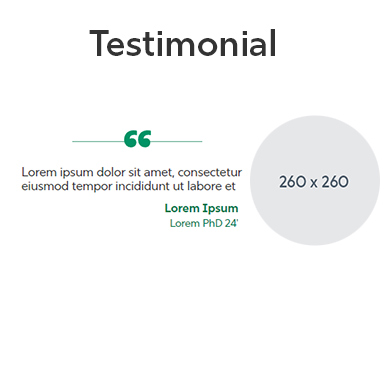
Overview:
The testimonials snippet is a compelling way to highlight individual famous sayings, or impactful statements on your webpage. This snippet combines a meaningful quote with an accompanying image, usually of the person who made the statement, to create a visually appealing and memorable presentation.
SEO Best Uses:
Optimizing the testimonials snippet for SEO involves several strategic considerations. First, ensure that the quote itself is relevant to your page鈥檚 content and includes keywords naturally. For instance, a quote about the quality of your services from a satisfied customer should subtly reflect your primary keywords. Second, use descriptive alt text for the image that includes keywords and provides context about the person and the quote. This enhances accessibility and SEO. Third, structured data can be used to markup the quote and image, helping search engines understand their context and increasing the likelihood of appearing in rich snippets.
Functionality:
This snippet allows for easy customization where you can choose the image and the quote text to fit the context and purpose of your content. If you need to feature multiple quotes and images, you can add additional snippets without compromising the page's visual clarity.
Right click and edit image to change out images. Image size are required on this snippet. Image must be 260x260.
-
Horizontal Tabs
Toggle More Info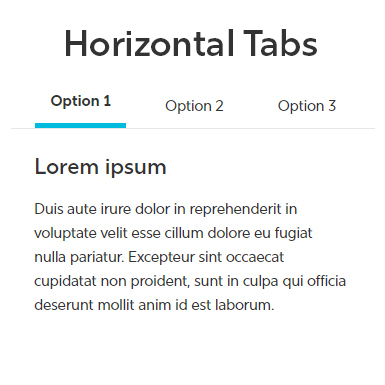
Overview:
The Horizontal Tabs snippet is a dynamic and interactive component that organizes content into separate sections displayed within horizontal tabs. As users click on each tab, the content within the section changes, allowing for efficient navigation and a clean presentation of multiple pieces of information without overwhelming the viewer. This design is especially useful for grouping related content, such as product features, FAQ sections, or different categories of services, into a single, streamlined view.
SEO Best Uses:
To maximize the SEO benefits of the Horizontal Tabs snippet, it's essential to use it thoughtfully and strategically. Firstly, ensure that the content within each tab is keyword-rich and relevant to your page鈥檚 overall theme. This helps search engines index the content effectively even if it鈥檚 initially hidden behind a tab. Secondly, use descriptive labels for each tab that include keywords and accurately represent the tab鈥檚 content. This not only improves user navigation but also provides search engines with clear context.
Functionality:
To add more tabs, simply right-click and insert a new row; each row corresponds to a new tab. If you need to remove a tab, you can delete the respective row, ensuring that the content remains organized and accessible. You can also set the default active tab, which determines which tab's content is displayed when the page initially loads. It鈥檚 crucial to set only one tab as active to avoid functionality issues, as multiple active tabs can break the snippet.
-
Vertical Tabs
Toggle More Info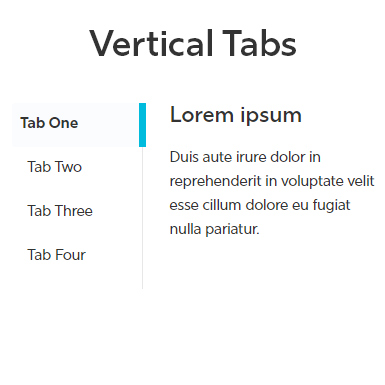
Overview:
The Vertical Tabs snippet offers a sleek and efficient way to organize and present content on your webpage through vertically aligned tabs. Unlike traditional horizontal tabs, these tabs are positioned along the side of the content area, providing a distinctive and space-efficient layout. As users click on each tab, the corresponding content displays in the adjacent area, allowing for a clean and compartmentalized view of multiple sections.
SEO Best Uses:
To effectively leverage the Vertical Tabs snippet for SEO, ensure that the content within each tab is rich in relevant keywords and provides clear, valuable information. Each tab鈥檚 label should be concise yet descriptive, incorporating keywords that accurately represent the content within. This helps search engines and users understand the context and relevance of the tabs. Implement structured data where applicable to enhance search engine comprehension and increase the likelihood of rich snippet displays.
Functionality:
The Vertical Tabs snippet is designed for ease of use and flexibility, allowing for seamless customization to fit various content needs. To add more tabs, simply right-click and insert a new row; each new row corresponds to an additional tab. Removing tabs is just as straightforward鈥攄elete the respective row to remove unwanted tabs. You can also set the default active tab, determining which tab鈥檚 content is displayed when the page first loads. It鈥檚 crucial to designate only one tab as active at any given time, as setting more than one active tab will disrupt the snippet鈥檚 functionality.
Landing Page - Layout Snippets
-
Text Container
Toggle More Info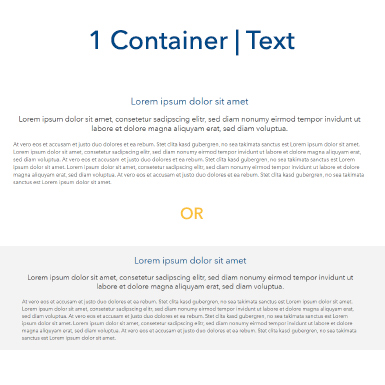
Overview:
This snippet is the most common snippet, text should always go inside of this snippet unless using a different snippet.
Properties:
gray = Gray (with black text)
-
Two-Thirds Container
Toggle More Info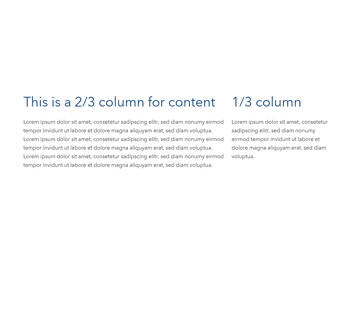
Overview:
This snippet is a two column snippet where the left column can be set to 70% (2/3) or 30% (1/3)
Properties:
Replace the text in the property for each column to either 2/3 or 1/3 to set which side will be the larger size.
gray = Gray (with black text)reverse = On mobile device, reverses stack order
-
Multiple Columns
Toggle More Info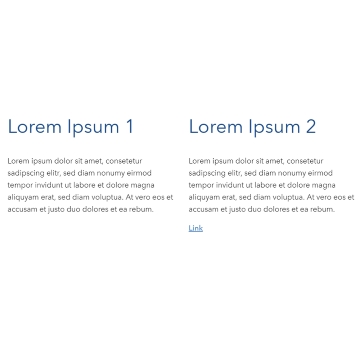
Overview:
This snippet is a two column snippet where the snippet is 50% wide for each column.
Functionality:
This snippet can have an additional column added to it by right clicking and adding a new column. This will convert the snippet to a 33/33/33 (33% wide for each column) snippet.
Additionally four columns will make the snippet 25/25/25/25 (25% wide for each column), however we do not recommend this.Properties:
- Use no-outer-padding to remove padding from the left and the right side of the snippet.
- Move objects (texts or images) inside the column to the top, bottom, and middle. Add those names in the features line.
Mobile-
- Use 1col,2col,3col, or 4col for different layouts when on mobile.
Tip: Publish to webdev to check on mobile how the display will look. If unsure, stick with 1col.
Color -
- gray = Gray (with black text) Background Color
Landing Page - Pathway Snippets
-
Featured Circles
Toggle More Info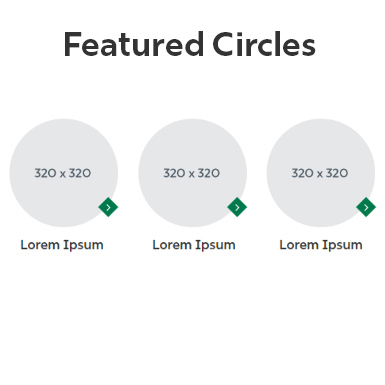
Overview:
This snippet acts as a strong way to drill down on landing pages. Using circlular photos and short titles, the photo enhances the text below it.
SEO Best Uses:
Pathways should be related to the heading and to each other. It's not recommend to use this snippet for pathways that aren't represenative by images. By using not easy to understand images, the photo will become visual noise. For similar reasons, it's also not recommended to use more than 1 or 2 rows of circles.
Functionality:
Right click and add new row to add an additional circle. Remove rows to delete circles that are not needed.
Default is 3 circles, Min of 2 circles, Max of 4.
Note: 4 circles will be smaller.Character Count:
Per item, Max of 40 Characters, Min of 3 Characters
Additional Properties:
Not Available
-
Quick Paths
Toggle More Info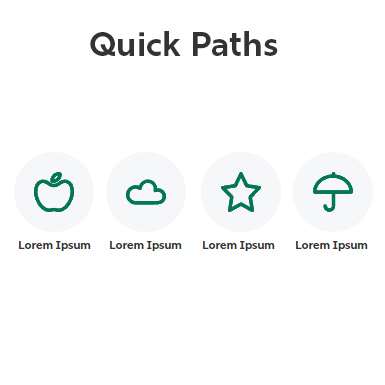
Overview:
This snippet is a quick path recognizable by icon, depending on the property choice this snippet should be used either towards the top or bottom of the page.
SEO Best Uses:
Pathways should be related to the heading and to each other. It's not recommend to use this snippet for pathways that aren't represenative by iconagraphy. By using not easy to understand icons, the icons become visual noise. For similar reasons, it's also not recommended to use more than 1 rows of icons.
Functionality:
Right click and add new row to add more accordions or remove rows to delete rows that are not needed.
Character Count:
Per item, Max of 25 Characters, Min of 3 Characters
Additional Properties: (Optional)
- circle: adds a gray circular background behind each icon. This is useful for main pathways
towards the top of the page and could be a good in-between of the circle snippet and
the quick paths snippet.
The circle property can be removed for less impactful pathways towards the bottom of the page.
- circle: adds a gray circular background behind each icon. This is useful for main pathways
towards the top of the page and could be a good in-between of the circle snippet and
the quick paths snippet.
-
Dropdown List
Toggle More Info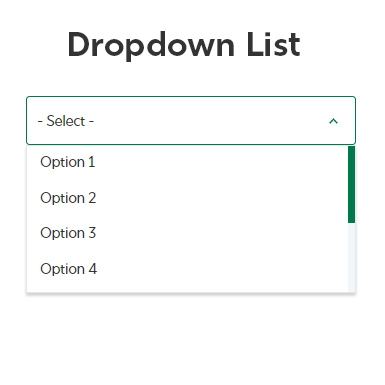
Overview:
This snippet is a pathway intended for a list of resources grouped by one related category or subject.
SEO Best Uses:
After the first 6 dropdown items the rest get cut off and require a scroll. Hidden content are less likely to be clicked. Link names should match the page they're being linked to. For example: A link called 'mpas' that links to 'Master of Physician Assistant Studies' wouldn't be best practices for SEO.
Functionality:
Right click and add new row to add more dropdown items or remove rows to delete rows that are not needed.
Character Count:
Per dropdown title, Max of 40 Characters, Min of 3 Characters
Additional Properties: (Required)
- -Select Option-: by default the words '-Select Option-' will appear in the dropdown. This can be changed to something like '-Select Degree-' or '-Select Advisor-'
Landing Page - Dynamic Snippets
-
Events Calendar
Toggle More Info
Overview:
If your department hosts numerous events, the Event Calendar snippet is the perfect solution to keep them organized and prominently displayed on your webpage.
SEO Best Uses:
Integrating the Event Calendar snippet into your webpage offers several SEO advantages. Firstly, it continuously adds fresh, dynamic content, which search engines favor for keeping your site relevant and engaging. Each event listed can be optimized with specific keywords related to the event and your department鈥檚 focus, enhancing your page鈥檚 visibility for related searches. Use descriptive event titles and meta descriptions to provide clear and keyword-rich information that helps in search engine indexing.
Functionality:
To integrate your department's events, simply link your events feed to the calendar snippet. This will automatically populate the calendar with your scheduled events, displaying them in a clean and organized format.
Event Department Link:
-
Custom Calendar
Toggle More Info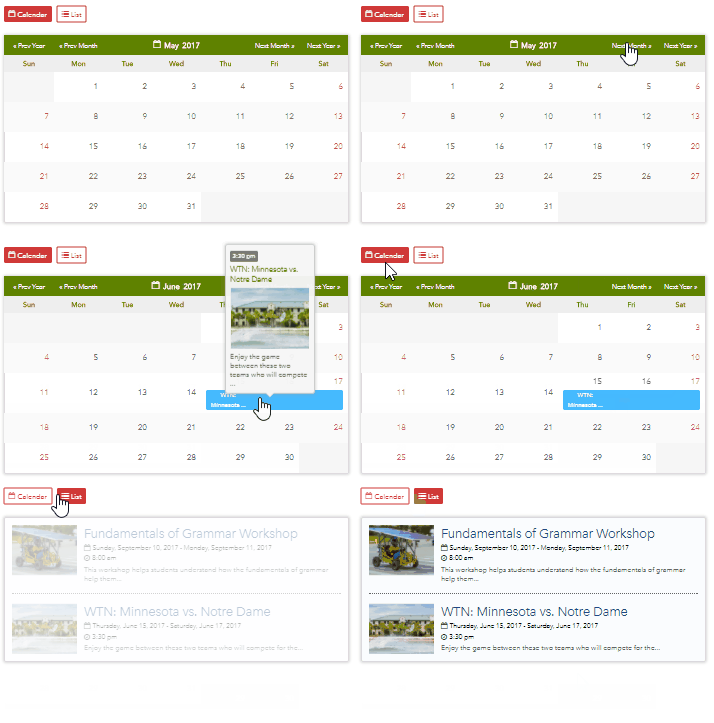
Description: This snippet acts as a standard calendar. This calendar is not dynamic and will not feed from any other calendars. The editor will need to maintain this snippet by removing old events and adding new ones.
Instructions:
-Each event can be set to one of four colors.
-Duration is the amount of days the event will last.
-The time can be set by typing one of the two formats:
1. 3:30 pm [Single starting time]
2. 11:30am - 5:00pm [Time format]- Header Parameter: The snippet is has the Instructions to have a default view of the Calendar or the
List view. This can be done by setting the 'Default view type' to one of the following:
Calendar [Change second row to 'calendar']
List [Change second row to 'list'] - Content Parameter
Image Size: 340x 260px [Thumbnail]
- Header Parameter: The snippet is has the Instructions to have a default view of the Calendar or the
List view. This can be done by setting the 'Default view type' to one of the following:
-
Date Revealer
Toggle More Info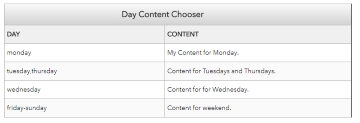
Description: This snippet allows for content to be scheduled by days of the week. The snippet will only display the content if the day of the week matches today's date.
Example: An event is happening on every Monday, we can create a CTA to appear only on Mondays.Instructions: The snippet allows for three different date formats.
1. A single day of the week [monday]
2. A day range [friday-sunday] - This uses a hyphen to get a range
3. A series of days [tuesday,thursday] - This uses commas to seperate dates. -
Directory
Toggle More Info
Overview:
The Directory for Faculty and Staff snippet provides an organized and visually appealing way to display a list of faculty and staff members from the 蘑菇TV Faculty/Staff database. This snippet is designed to create two columns of profiles, offering a clear and structured presentation that makes it easy for visitors to find and connect with the members of your department.
Functionality:
The Directory for Faculty and Staff snippet pulls data directly from the 蘑菇TV Faculty/Staff database, ensuring that the information is current and accurate. It populates two columns on your webpage, providing a balanced and organized layout that enhances readability and accessibility.
Properties:
To customize the display of your faculty and staff directory, you can specify two key properties: the type of display and the sorting order.
-
Display Type: Choose between "text" or "thumbnail" to define how each faculty or staff member鈥檚 profile will be shown.
- Text: This option presents the directory in a list format with names and titles, ideal for a clean and minimalistic look.
- Thumbnail: This option includes a photo for each member alongside their name and title, providing a more visual and engaging presentation.
-
Sorting Order: Decide how you want the entries to be sorted within the directory.
- Sort A-Z: This default sorting option organizes the profiles alphabetically by last name, making it straightforward for users to find specific individuals quickly.
- Sort Manual: Use this option if you prefer to manually arrange the order of the profiles, allowing you to highlight certain members or group them by teams, departments, or other criteria.
Details on all Properties:
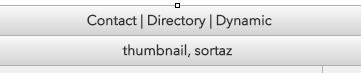
"1column","2column","3column","4column", "text" controls layout and whether to hide the photos or show the photos.
"sortaz" or "sortmanual" controls the sorting of the manual user list.
"staff" or "faculty" can be added to control the type of employee.
"azindex" parameter can be added to have an AZ Index selector
"nophone" , "noemail" , "notitle" , "nofocus", "nooffice" Hide additional fields with any of these parameters.
*Note only the Thumbnail and Sort properties are important, the rest are optional.
All parameters added to the properties cell should be seperate by commas.
Examples: thumbnail, sortmanual, staff, azindex, nophone, noemail, no officeDepartment IDs: [First Column]
This column can be left blank if wanting to manually insert users.
This snippet can be set to a department id or a csv of email prefix, or both(appends users). You can also remove users with the remove list.Manual/Add List: [Second Column]
Add users seperate by commas. This can be used in combination with the Department ID (First Column) to add missing users.
If "sortaz" is used as a parameter, the users will be sorted Alphabetically. If wanting to insert users based on manual order, use "sortmanual".
Remove List: [Third Column]
Remove users seperate by commas. This can be used in combination with the Department ID (First Column) to remove users who shouldn't show up in this list.Incorrect/Missing Information for Faculty/Staff:
With the integration of Workday, there are still adjustments being made to who manages the different information.
Contact helpdesk@fgcu.edu with the information that you want to update and it will be routed appropriately. Changes will take at least 24 hours after the information has been entered in by the appropriate department.Adding Directory Pages for Faculty and Staff:
Creating a directory page for a faculty or staff member creates a unique page that will be connected to that individual's email prefix (the email without @fgcu.edu).
Once a page is created for a faculty/staff member, their name will go from black to a clickable blue link whenever they're pulled into the Contact | Directory | Dynamic snippet.Add new Faculty/Staff directory page:
Go to the and then create a new Profile Page Dynamic (if the user doesn't exists already) and make sure the file name is the email prefix.
Example: a user with the email of msmith@fgcu.edu should have the page name msmith.pcf
(you don't need to write ".pcf", just the prefix)Make updates to a directory page/Add bio information:
Go to their page in the , edit their information via the multi-edit tab and content region. When finished, save and publish the profile page.
The changes should reflect on the snippet and on the details page.Editing the Faculty/Staff members' photo:
To change the default image, go to the profile pictures folder inside of the . Upload a .jpg image with the email address prefix as the file name.
Example: a user with the email of msmith@fgcu.edu should have the page name msmith.jpg
The size of the image should be 260px W x 260px H. -
-
News
Toggle More Info
Overview:
The 蘑菇TV360 News Snippets bring the latest updates and stories from 蘑菇TV鈥檚 vibrant campus right to your webpage. This snippet pulls content directly from 蘑菇TV360, our dedicated news platform, showcasing a dynamic feed of articles, announcements, and features. One of the standout features of this snippet is its customization ability, allowing you to select and display specific types of news that are most relevant to your audience.
SEO Best Uses:
Integrating the 蘑菇TV360 News Snippets into your site can significantly enhance your SEO strategy by providing fresh and regularly updated content, which search engines favor. To optimize these snippets for SEO, ensure that each news article includes relevant keywords in the title and meta description. This practice helps improve the visibility of your news in search results.
Functionality:
The 蘑菇TV360 News Snippets are designed to be user-friendly and adaptable, providing a seamless integration of news content into your webpage. By linking directly to the 蘑菇TV360 news feed, this snippet automatically updates with the latest articles, keeping your content fresh and current.
-
Google Sheets Table
Toggle More Info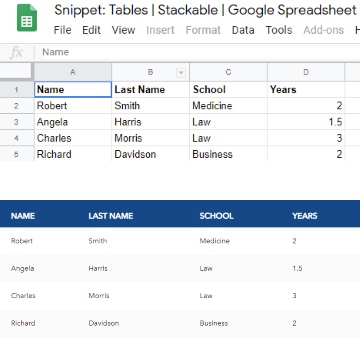
Overview:
The Google Sheets Table snippet allows you to seamlessly embed a Google Spreadsheet into your webpage, displaying the data as a responsive and stackable table. This snippet provides a powerful way to present data directly from Google Sheets, making it easy to update and maintain content without altering your website's code.
Functionality:
To configure the Google Sheets Table snippet, you need to specify several key parameters:
- Sheet URL/ID: This is the unique link or identifier of your Google Spreadsheet. You can find this
in the URL of your spreadsheet. For example, in the URL
https://docs.google.com/spreadsheets/d/abcd1234/edit,abcd1234is the ID. - Sheet Page/Name: This specifies the particular sheet within your spreadsheet that you want to display. For instance, if your spreadsheet has multiple tabs, you might choose to display the sheet named "Sales Data".
- From Col/Row: Define the starting point of the data range you want to embed. This can be a specific
cell like
A1or a column likeA. - To Col/Row: Specify the endpoint of your data range selection. This can also be a specific cell
like
D10or just a column likeD. If you want to include all rows from a starting column, you can simply use the column letter.
These parameters allow you to tailor the exact portion of the spreadsheet you wish to display, offering flexibility in how the data is presented on your page.
Properties:
Advanced Functionalities: search, filter, pagination, info, desc#, asc#. To control sorting order use desc/asc followed by column number(zero based index). I.e. for sorting column 1 ascending you would put asc0.
NOTE: filter only works when search is enabled.
Mobile Size only: Set the properties for what happens to the table on mobile. left center right, border noborder, header noheader stackheader (this will place all headers on first row only and will remove next rows individual headers)Desktop Size only: light-table can be used to change completley the style of the table. small-table changes to smaller size. Text alignment for desktop is controlled using the normal cell/column/table properties of the WYSIWYG Editor.
Known Issues:
This snippet will conflict with any Formstack embeds since both Third Party tools use conflicting code. Recommended to use a Formstack form seperately on a different page or to create a link directly to the form. - Sheet URL/ID: This is the unique link or identifier of your Google Spreadsheet. You can find this
in the URL of your spreadsheet. For example, in the URL
Landing Page - Technical Snippets
-
Pop-up
Toggle More Info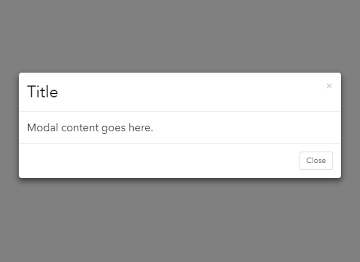
Overview:
The Popup Snippet is a versatile tool designed to enhance user interaction on your webpage. By placing this snippet, you can create a button that, when clicked, triggers a popup window. This popup can be customized to display either simple text content or an entire webpage, depending on your needs.
SEO Best Uses:
Incorporating the Popup Snippet can also benefit your SEO strategy by improving user engagement and content accessibility. Optimize the text or page content within the popup with relevant keywords and meta information to ensure search engines can index this content effectively.
Functionality: Right click and edit link to rename the link's text to display, however do not edit the url. It should remain as a #.
The source can be either content or link.
Choosing content will take the text from the second field (Content).
Choosing link will open a webpage inside of the pop up acting as a small internal browser. We don't recommend this and should only be used in particular scenarios. If choosing link, set the button's url to the designated external link. -
Pop-up Hub
Toggle More Info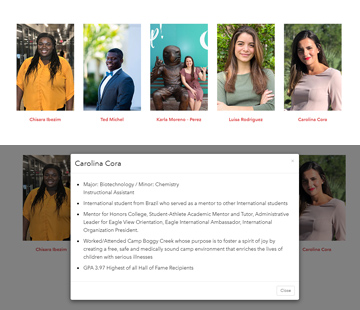
Overview:
The Popup Hub Snippet is a versatile and powerful tool designed to handle multiple interactive pop-ups within a single webpage. This snippet leverages a column-based layout to host various pop-ups simultaneously, allowing you to display different pieces of content, each triggered by its own button or link. This functionality is perfect for presenting a range of information in an organized and engaging manner, such as event details, product descriptions, or user instructions, all without overwhelming the main page content. Each pop-up can be customized with unique content, providing a rich user experience and facilitating easier navigation and interaction.
SEO Best Uses:
Use each pop-up to target different keywords and topics, expanding the breadth of content available to users and search engines without cluttering the main page.
Functionality:
The Multi-Popup Snippet is designed for flexibility and ease of use, allowing you to embed multiple interactive pop-ups within a single page. This snippet uses a multiple columns layout as a template, where each column can host a separate pop-up trigger. You can add as many columns as needed to accommodate multiple pop-ups.
-
Splash Pop-up
Toggle More Info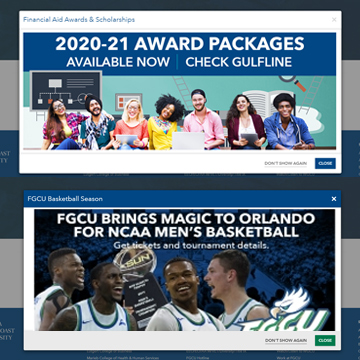
Overview:
The Splash Pop-up Snippet is designed to automatically capture the user's attention immediately after the page loads by displaying a prominent pop-up. This pop-up is ideal for highlighting major events, important announcements, or special promotions that users should not miss. Once the user interacts with the pop-up and selects the option to never see it again, a cookie is placed on their device.
SEO Best Uses:
The Splash Pop-up Snippet can enhance SEO and user engagement when used appropriately. Ensure the pop-up content is highly relevant to the user and time-sensitive, such as announcing a significant event or deadline. This relevance can keep users engaged and reduce the risk of increasing bounce rates.
Functionality: Place an image in the content cell that represents the title.
The cookie name should be something unique that no one else will have. This could be something like 'housingmovein2020'. If two sites use the same cookie name, a user could click 'don't show again' and the user wouldn't be able to see pop ups using that same cookie name. (FYI: Cookies do expire and will not cause any issues to student or faculty/staff computers)Properties: Use blue to add a blue branded theme to the snippet.
Image sizes: (Images are recommended on this snippet)
1200px x 450px [Splash Image - Content] (height is flexible between 400px - 550px)
Admin Only Snippets
-
A - Z Index
Toggle More Info
Overview:
This snippet takes an ordered list (bulleted list) and filters it into whichever letter it begins with.
Functionality:
Set the default letter to A or leave it empty to have ALL defaulted.
Why is this Admin Only?:
In the best-case scenario, this snippet utilizes all 26 characters of the alphabet to fulfill its purpose effectively. However, in the worst-case scenario, using only a few letters can lead to a poor user experience.
Filling a significant portion of the alphabet with valuable content can potentially result in performance issues, causing slow page loading times. This, in turn, can lead to high bounce rates and a decline in the page's SEO ranking, as Google takes page speed into account for SEO ranking.
An illustrative example of a page containing valuable content throughout the A-Z index but suffering from slow load times is the College of Arts and Sciences Directory.
Conversely, a page that loads quickly and makes efficient use of most alphabet characters is the A-Z Index page. However, it's important to note that this type of page can be considered a 'link farm.' Link farms consist of low-quality links that receive minimal user interaction, potentially harming the website's overall SEO performance.
Maintaining and monitoring a link farm can be quite challenging, as the linked pages often become outdated. Many university A-Z index pages contain numerous outdated links, often considered as legacy tools from the 1990s and early 2000s.
-
BSMA Events
Toggle More Info -
Embed Code
Toggle More InfoOverview:
Allows HTML or Javascript code for embeddeding external web pages and website elements. Most frequently this is used for embedding forms from Formstack. This is usually installed by the web team and should not be modified once installed.
Functionality:
Open the source panel and paste the HTML or Javascript code as instructed.
For use of custom HTML, submit a Marketing Request.
This ensures quality performance and proper placement of all embedded elements on the page.
Why is this Admin Only?:
Custom code can have adverse effects on both the university's brand and website performance. Any injected code may lead to conflicts with the existing base code on the site, which requires testing.
Popular embed codes, such as donation forms and Google Maps, typically do not encounter issues. However, it's essential to test their responsiveness on various devices, including tablets, mobile phones, laptops, and others. Depending on the placement, some elements may get cut off, making them inaccessible for users to fill out or interact with.
A display may appear suitable on your computer, but it's crucial to consider that over 60% of our users access the site via mobile devices. Moreover, there is a wide range of laptop and monitor sizes and resolutions that we cannot expect every web editor to account for during testing. In addition, we perform reviews across different operating systems and browsers commonly used by our target audiences.
-
Mobile Hider
Toggle More InfoOverview:
This snippet allows content to hide on specific devices. Useful for providing a different location for the content on mobile to control where the content renders on the page.
Functionality:
Place the content in the snippet, then type in 'Desktop', 'Tablet', or 'Mobile'. Do not put in all three properties, that will just hide the snippet and cause additional load. If a snippet should be hidden temporairly, please use versions to save a back up of that snippet.
Why is this Admin Only?:
The reason behind restricting the use of our mobile hider snippet lies in maintaining a high-quality user experience across all devices. This snippet should be employed sparingly, if at all, because even when content is hidden, it is still being rendered, potentially slowing down the page and negatively impacting SEO.
This snippet can cause issues with consistency in the user experience from mobile to tablet to desktop, which can result in users being unable to access content restricted for one device. This can lead into many legal issues in more than one way. The mobile hider snippet is best suited for cases where it is necessary to save vertical space or to provide a distinct presentation of the content. An admin can determine if this snippet is okay to use.