
CMS Blogs
/ Tags: Blog Pages, Blog Posts, Creating Blogs, Blogs
Omni CMS Blogs uses Omni CMS to run a blog in your site. This includes not only the article pages but a listing page that dynamically pulls in each post.
Create a new blog section as follows:
- Go to Content > Pages showing the location where you'd like to add new content.
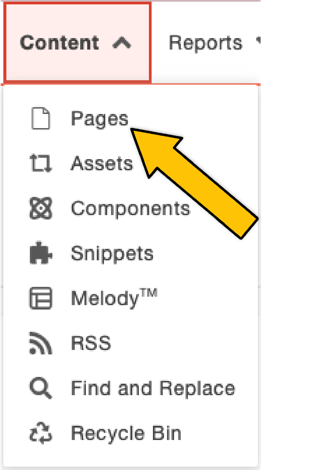 Content dropdown
- Click +New.
 New content button
 - Select an option.
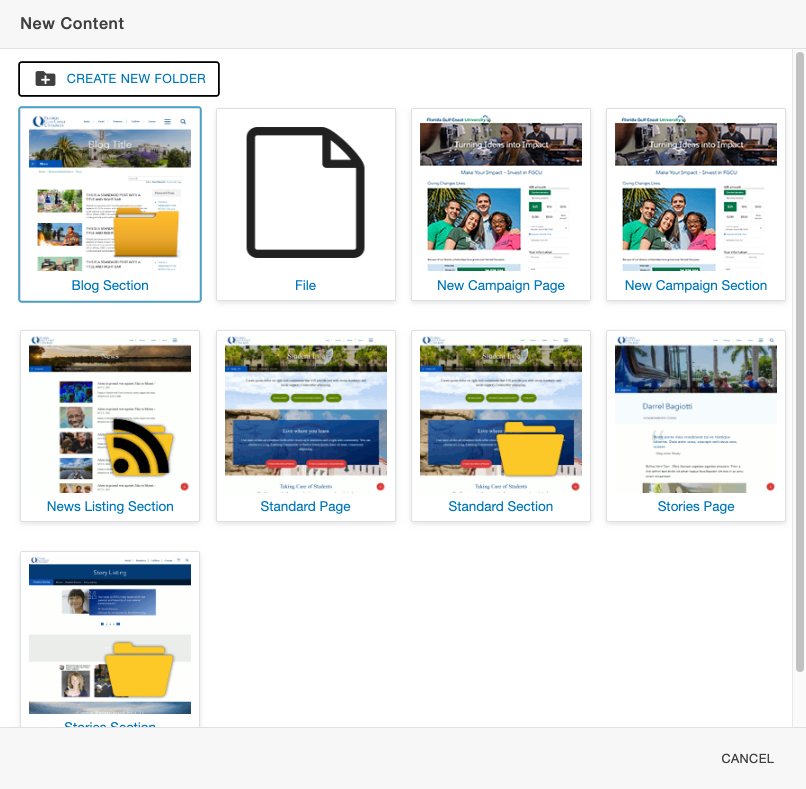 New content options
A blog post form will appear, this is where you configure the post's properties.
You will not be able to start writing just yet.
Blog Post form Break-down


Title is the name of your story.
Description will appear underneath the title only the landing page only. (It will not display on the blog post's story) This entises readers to get a preview of what the story will be about. Include 2-3 relevant keywords.
Author, use the person who wrote the story's first and last name. For consistency, keep the formatting the same with their preferred name, this will make it easy for users to search for that author. If they like the article by 'Mike Bonard', but other stories use 'Michael Bonard' the user may not find those other stories.
Post Image:
- Select the file icon
- Navigate to your images folder
- Click "upload "
- Click the "add" button to find your image or you can drag the image onto the upload box.
- Once your image is selected, you can click "Start Upload" , then your image will now be uploaded into the CMS.
- Make sure your image is selected, then select "Choose File" , your image field will say {f:######} (this is a dependency tag).
Note: Post Images are recommended to be sized to 296x180 px, but the image will scale and crop if the image is not the correct size.
Slight pixelation can occur from images being too large or if an image is too wide or too tall, it may end up cropping oddly (ex.. only their eyes will show or it might cut someone's forehead off in the picture).
Tags are very important, they will allow users to find similar post by clicking the tag cloud or searching for that specific tag. Be thoughtful and strategic. Synonyms are good, using unique variations is good.
Featured Post will make the post go into the top 3 spot on the landing page of the blog. These can be deselected after the story is irrelvent, but the top 3 featured spot will prioritize the newest 3 featured post.
File name, this is the url. No spaces, no caps. Just use dashes and base the url off the post
title.
Example: "Laura goes to World Championship" is the title.
File name: "laura-goes-to-world-championship"
Note: All of these settings can be adjusted later on by going into the properties panel after the post has been created. If the file name was entered wrong, feel free to submit a web support ticket.
Publishing a Blog Post
Blog post work in webdev and production and will automatically reflect on your listing page. If you don't see it on your listing page, feel free to republish your listing page (index.pcf) or wait 24 hours for the listing page to no longer be cached.
Tag Cloud
Share Post