
Snippet Archives
The Following Snippets Will Be Phased Out
Following the launch of the new logo and branding guidelines around January 2023, the website is catching up to compliance and will be reducing snippets to comply with branding.
Category: Calendar
-
Calendar | Date Content Chooser
Toggle More Info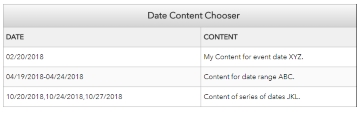
Description: This snippet allows for content to be scheduled. The snippet will only display the content if the date matches today's date.
Example: An event is happening on the 25th of every month, we can create a CTA to appear only on these days.Instructions: The snippet allows for three different date formats.
1. A single date [02/20/2018]
2. A date range [04/19/2018-04/24/2018] - This uses a hyphen to get a range
3. A series of dates [10/20/2018,10/24/2018,10/27/2018] - This uses commas to seperate dates. -
Calendar | Day Content Chooser
Toggle More Info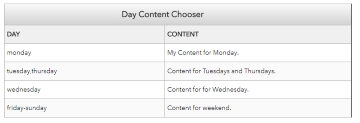
Description: This snippet allows for content to be scheduled by days of the week. The snippet will only display the content if the day of the week matches today's date.
Example: An event is happening on every Monday, we can create a CTA to appear only on Mondays.Instructions: The snippet allows for three different date formats.
1. A single day of the week [monday]
2. A day range [friday-sunday] - This uses a hyphen to get a range
3. A series of days [tuesday,thursday] - This uses commas to seperate dates. -
Calendar | Events | Carousel
Toggle More Info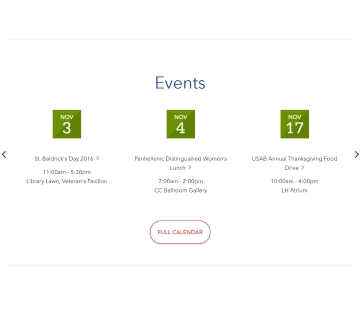
Description: Pulls information from a R25 calendar feed and displays it in carousel format.
Instructions: Change the parameter events feed link with any of the urls from the Calendar Feed list appropriately. -
Calendar | Events | Grid
Toggle More Info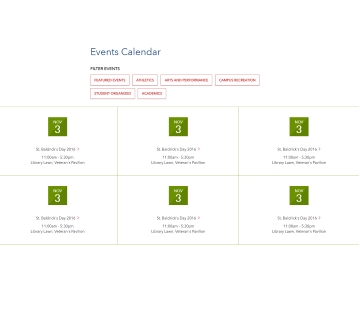
Description: ---
Instructions: ---
-
Calendar | Events | List
Toggle More Info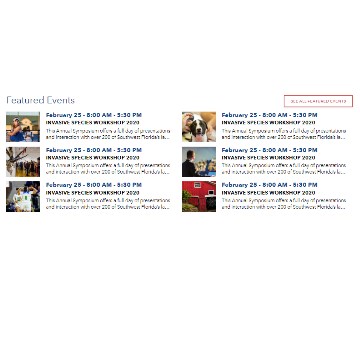
Description: Displays events from a R25 feed in a list format.
Instructions: Change the parameter events feed link with any of the urls from the Calendar Feed list appropriately.
-
Calendar | Simple
Toggle More Info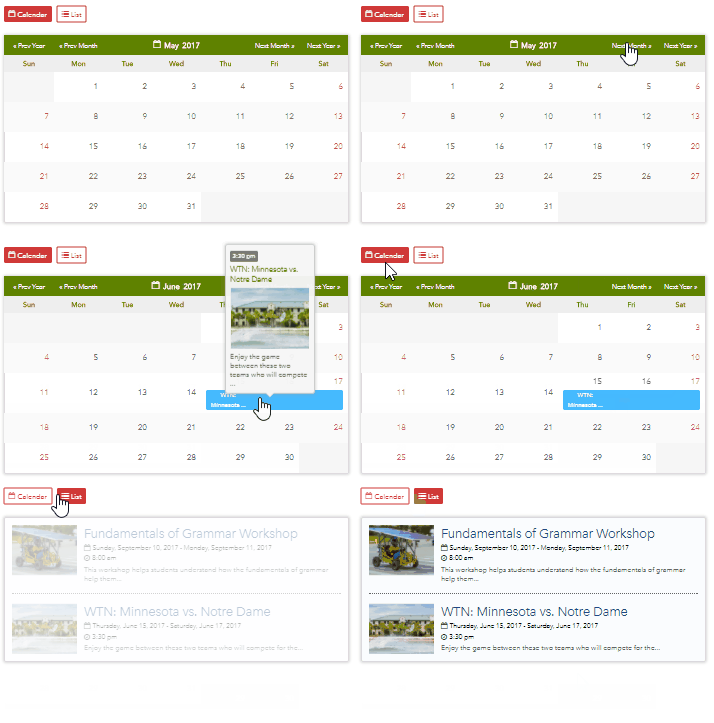
Description: This snippet acts as a standard calendar. This calendar is not dynamic and will not feed from any other calendars. The editor will need to maintain this snippet by removing old events and adding new ones.
Instructions:
-Each event can be set to one of four colors.
-Duration is the amount of days the event will last.
-The time can be set by typing one of the two formats:
1. 3:30 pm [Single starting time]
2. 11:30am - 5:00pm [Time format]- Header Parameter: The snippet is has the Instructions to have a default view of the Calendar or the
List view. This can be done by setting the 'Default view type' to one of the following:
Calendar [Change second row to 'calendar']
List [Change second row to 'list'] - Content Parameter
Image Size: 340x 260px [Thumbnail]
- Header Parameter: The snippet is has the Instructions to have a default view of the Calendar or the
List view. This can be done by setting the 'Default view type' to one of the following:
-
Calendar | Timeline | Date
Toggle More Info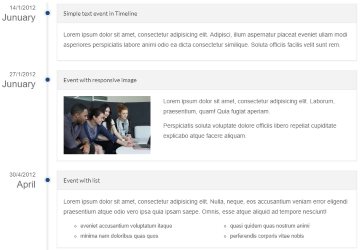
Description: This snippet acts as a standard timeline.
Instructions: The snippet is comprised of two snippets, one inside the other. The Container | Panel could be deleted from any panel if needed to have simple text, but is highly recommended to keep the panels.
Category: Billboard
-
Billboard | Box
Toggle More Info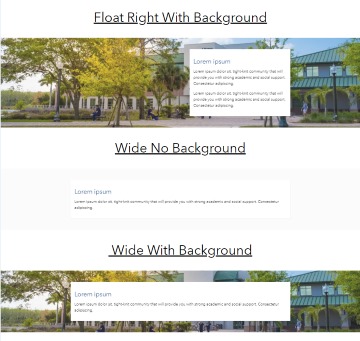
Description: Display white container on top of a optional background image as a billboard.
Instructions: A left or right parameter can be added to control the float of the container, the width will be changed automatically(default is wide). If no image is present the background color can be changed with grey or white parameters.- Content Parameter
Image sizes: 1900x 450px [Background]
- Content Parameter
-
Billboard | Background | Overlay
Toggle More Info
Description: Display text as a billboard with a blue overlay on top of a background image.
Instructions: Use the following parameters to control the snippet.
- Content Parameter
Image sizes: 1280x 350px [Background]
- Content Parameter
-
Billboard | Blue Overlay
Toggle More Info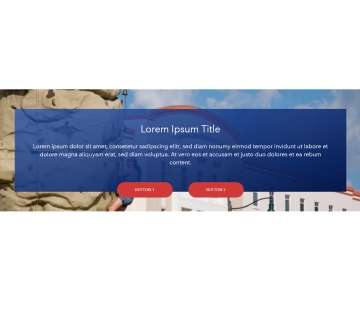
Description: Display text as a billboard with CTA buttons.
Instructions: Use the following parameters to control the snippet.
- Content Parameter
Image sizes:1280x 500px [Background]
- Content Parameter
-
Billboard | Dark Overlay | No Background
Toggle More Info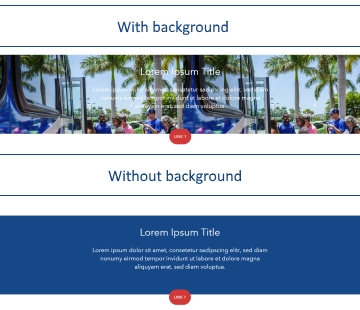
Description: Display text as a billboard with CTA buttons.
Instructions:
- Content Parameter
Image sizes:1280x 350px [Background]
Background will turn blue if the image is removed.
- Content Parameter
-
Billboard | Multi Color-Texture | Overlay
Toggle More Info
Description: Display text as a billboard with a background overlay.
Properties: Color options include blue or green. background Textures options are rock,sea, waterfall -
Billboard | No Overlay
Toggle More Info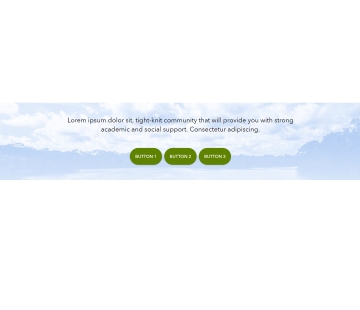
Description: Display text as a billboard with CTA buttons.
Image sizes: (Images are required on this snippet)
1280x 350px [Background]
Category: Gallery
-
Gallery | Flickr
Toggle More Info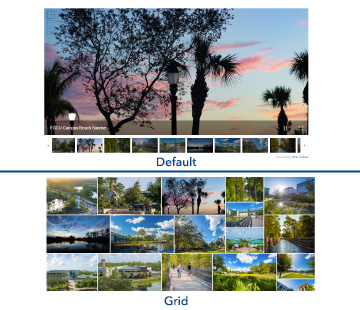
Description: Display an image gallery from a Flickr album. The images that appear can be managed by the Flickr account by adding or removing images from the album.
Instructions: Choose an album from the official 蘑菇TV flickr: or from a department Flickr. Selecting an album will append an ID in the url, use this ID for the Gallery ID in the snippet.
The theme can be set to default for a slider, or grid for a tiled look. If using the grid display, set the number of photos to display in the tiled view. Different photo limts will return varied displays. It's encouraged to try different values until the display looks clean and even. -
Gallery | Simple
Toggle More Info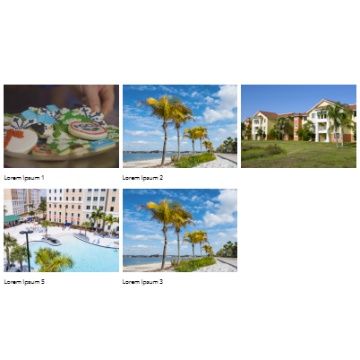
Description: Display a image/video gallery.
Instructions: A 2column or 3column, parameter can be added to control the number of columns. Default is 4.
Each image needs a thumbnail. If using a youtube video and a thumbnail is needed, it can be generated from the video id.
I.e: Video equalsOther sizes include default.jpg, hqdefault.jpg, sddefault.jpg, maxresdefault.jpg
Category: Infographics
-
Infographics | 3 up | Blue
Toggle More Info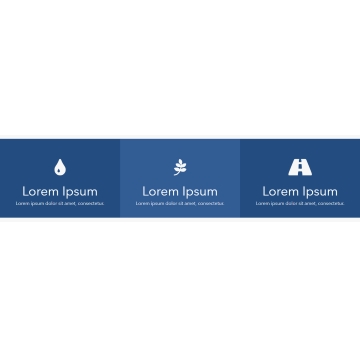
Description: Display statistics and values with a dedicated icon.
Instructions: Right-clicking on the icon in the editor and choosing Insert/edit link will open the link editing menu. Click on the Class drop-down menu and scroll down to icons, then pick your icon.
-
Infographics | 3 up | Box
Toggle More Info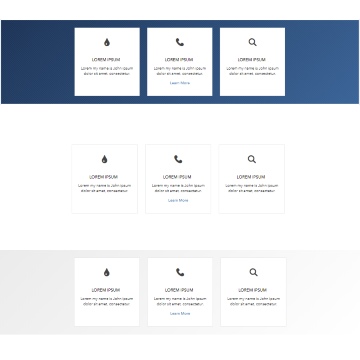

Description: Display statistics and values with a dedicated icon in a box format.
Instructions: Right-clicking on the icon in the editor and choosing Insert/edit link will open the link editing menu. Click on the Class drop-down menu and scroll down to icons, then pick your icon.
Properties: The background can be changed to blue, gray , original, opaque, or modern color in the snippet configuration.Property Details:
Blue: Blue background, white boxes.
Gray: Gray background, white boxes.
None/Leave Empty: White background, White boxes.
Original: Gray background, Odd blocks will be dark, Even blocks will be light, white text.
Opaque: Blue Background, semi-transparent boxes.
Modern: Blue Background, gradient blue boxes, white text. -
Infographics | 3 up | Hover
Toggle More Info
Update: This is a legacy snippet - Using this snippet will replace the teal color with gray.
Description: This infographic will reveal supporting text and a background image when the user hovers over each box.Instructions: Right-clicking on the icon in the editor and choosing Insert/edit link will open the link editing menu. Click on the Class drop-down menu and scroll down to icons, then pick your icon.
Image sizes: (Images are required on this snippet)
430x 460px [Background x 3] -
Infographics | 3 up | Plain
Toggle More Info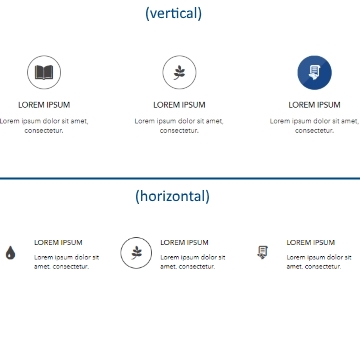
Description: This infographic acts as a button when clicking the icon
Instructions: Right-clicking on the icon in the editor and choosing Insert/edit link will open the link editing menu. Click on the Class drop-down menu and scroll down to icons, then pick your icon.
Properties: Set the properties to either vertical,large or vertical,small to get different sizes of this snippet
-
Infographics | Billboard
Toggle More Info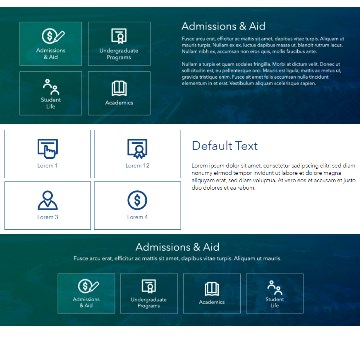
Description: This infographic acts as a billboard.
Instructions: Type the icon name and update the link to. View Icon list
Properties: Set the properties to either vertical,horizontal, 2column, 3column, 4column, to get different layouts of this snippet.
Background Textures options rock,sea, waterfall. Setting it to nobackground will remove the background. -
Infographics | Line Icon
Toggle More Info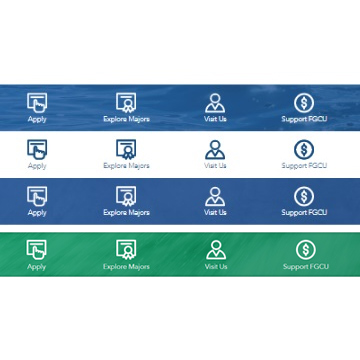
Description: This infographic uses line icon style.
Instructions: Type the icon name and update the link to. View Icon list
Properties: Background Textures options rock, sea, waterfall, if textures are not present, a white background will appear (2nd example in the thumbnail). The background color can be changed using green with any background texture. (4th example in the thumbnail)
Category: Infotext
-
Infotext | 3 up | Simple
Toggle More Info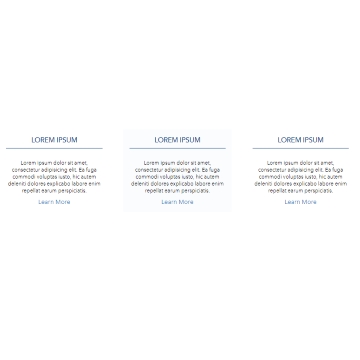
Description: Display information text in a plain and simple way.
Instructions: All styles will be removed automatically. Only plain text is allowed. Link text can be removed if needed.
-
Infotext | Multiple up | Simple
Toggle More Info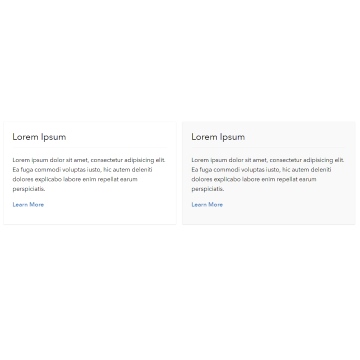
Description: Display information text in a 2 column layout plain format.
Instructions: Title has a forced style. Content style is flexible.
-
Infotext | Column | Title
Toggle More Info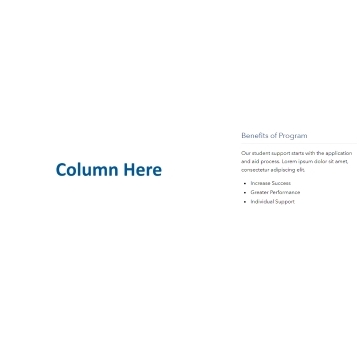
Description: Use in combination with any columns container preferably within a 1/3 column.
Instructions: Title has a forced style. Content style is flexible.
-
Infotext | 2 up | Contact (COMBO)
Toggle More Info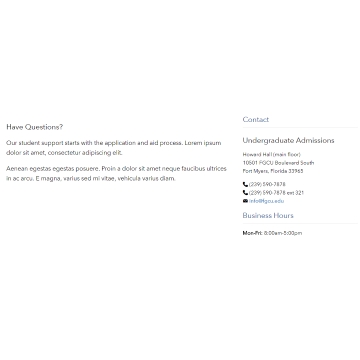
Description: Used for displaying contact information in a text format.
Instructions: Left column content can be used to place google maps information.
-
Infotext | Quick Facts
Toggle More Info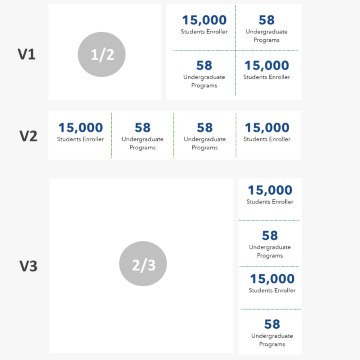
Description: Used for displaying quick facts / statistics in a text format. The snippet can be used by itself or within a 2/3 1/3 container snippet.
Properties: The invert will invert the position of the title and the value.
NOTE: This snippet should not be used within a text container.
-
Infotext | Quick Note
Toggle More Info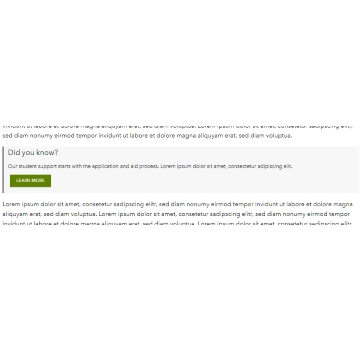
Description: Used for displaying a side note in a gray box.
Best Uses: This snippet should not be used within a text container or 1/3 or 1/4 container.
-
Infotext | Promo
Toggle More Info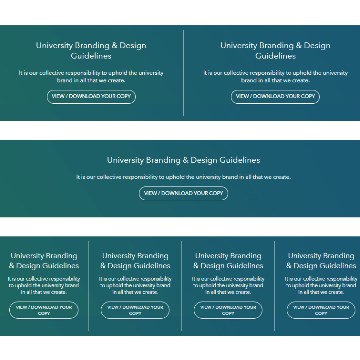
Description: Used for displaying promotional text, the snippet can be used as a 1 or multiple columns layout.
Instructions: Each row inserted represents a column.
NOTE: This snippet should not be used within a text container.
Category: Tables
-
Tables | Basic
Toggle More Info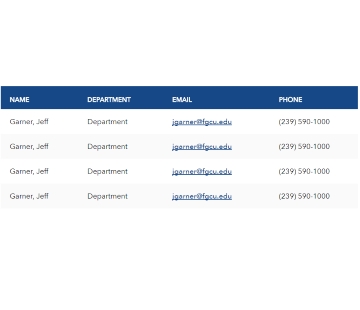
Description: This table will scroll to the right on mobile. This isn't the recommended table, but can be used if the table format of the stackable table on mobile doesn't present the information in a read-able way for what's being presented.
Instructions: Right-clicking and adding a row will generate a new row, and adding a new column will add a column.
-
Tables | Stackable
Toggle More Info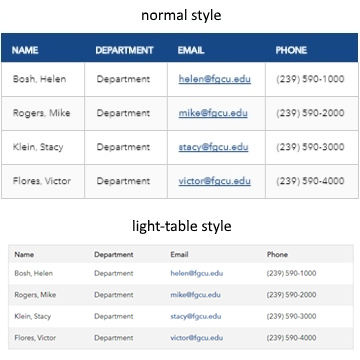
Description: This table will stack on mobile to show each row as a block of information. This snippet is recommended for most table usage.
Instructions: Right-clicking and adding a row will generate a new row, and adding a new column will add a column.
Properties:
Advanced Functionalities: search, filter, pagination, info, desc#, asc#. To control sorting order use desc/asc followed by column number(zero based index). I.e. for sorting column 1 ascending you would put asc0.
NOTE: filter only works when search is enabled.
Mobile Size only: Set the properties for what happens to the table on mobile. left center right, border noborder, header noheader stackheader (this will place all headers on first row only and will remove next rows individual headers)Desktop Size only: light-table can be used to change completley the style of the table. small-table changes to smaller size. Text alignment for desktop is controlled using the normal cell/column/table properties of the WYSIWYG Editor.
-
Tables | Stackable | Google Spreadsheet
Toggle More Info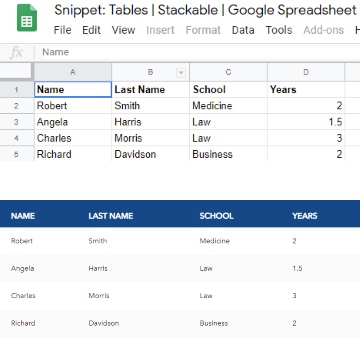
Description: Embed a google spreadsheet in a page and display it as a stackable table. NOTE: Make sure the Spreadsheet is shared publicly before using this snippet.
Instructions: Sheet URL/ID is the link of the spreadsheet. Sheet Page/Name is the name of the desired sheet. From Col/Row is the starting point of data to select. To Col/Row is the las point of selection. NOTE: Both range (from/to) can indicate optionally second dimmetions. i.e.: A1 or just A.
Properties:
This snippet has similar properties from the Stackable Table snippet.Known Issues:
This snippet will conflict with any Formstack embeds since both Third Party tools use conflicting code. Recommended to use a Formstack form seperately on a different page or to create a link directly to the form.
Category: Video
-
Video | Background
Toggle More Info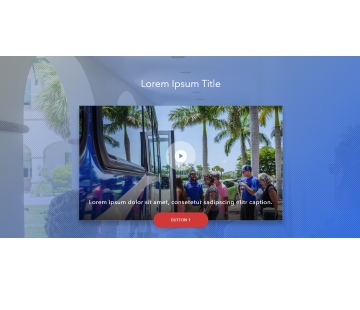
Description: This video snippet uses youtube to embed videos onto a page and has a CTA button. The background has high impact on usability, but can be heavy on page load speed and effort to set this snippet up.
Instructions: Right click the YouTube Link and edit the link to change the embedded video.
Watch a video on how to obtain the video URL
Right click to edit the button link. We do not recommend deleting the button, this will cause spacing issues.
Three image sizes are needed for the background, and in total you will need 4 images.Image sizes: (Images are required on this snippet)
Background image: These 3 images can be a bit pixelated since the background is covered by two overlays.
1900x 1000px [Background- Desktop] (Recommended file size: 150kb or less)
1000x 715px [Background- Tablet] (Recommended file size: 125kb or less)
775x 750px [Background- Mobile] (Recommended file size: 100kb or less)
Thumbnail:
1050x 590px [Video Thumbnail] (Recommended file size: 225kb or less) -
Video | Description
Toggle More Info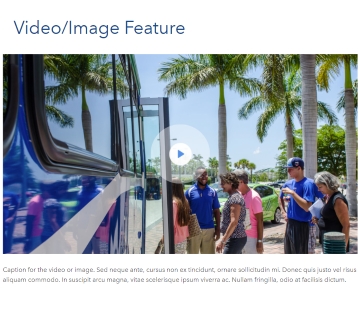
Description: This video snippet uses youtube to embed videos onto a page and has a description below the video explaining the context of the video.
Instructions: Right click the YouTube Link and edit the link to change the embedded video.
Watch a video on how to obtain the video URLImage sizes: (Images are required on this snippet)
Thumbnail:
1050x 590px [Video Thumbnail] (Recommended file size: 225kb or less) -
Video | Single
Toggle More Info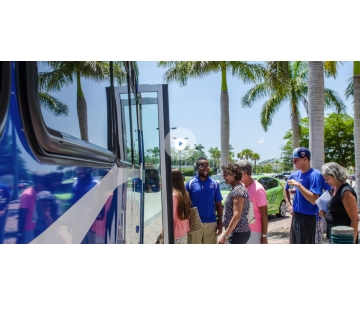
Description: This video snippet uses youtube to embed videos onto a page.
Instructions: Right click the 'Video URL' text on the snippet, then edit link. In the URL field paste the youtube link's video ID. The video ID is will be after the 'v='
Example: https://www.youtube.com/watch?v=SDzt6EAw1fA&ab_channel=蘑菇TV
For all questions or issues with this snippet, please submit a for help.Image sizes: (Images are required on this snippet if the video is NOT from YouTube)
Thumbnail:
780x 442px [Default Video Thumbnail] (Recommended file size: 200kb or less)
1050x 590px [Large Video Thumbnail] (Recommended file size: 225kb or less)Properties: The video size can be increased to full width using large-video. Use popup to have the video open as a modal.
-
Video | Box (COMBO)
Toggle More Info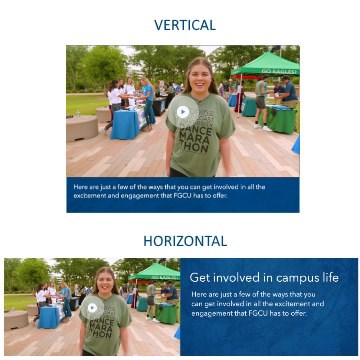
Description: This video COMOBO allows to embed videos onto a page.
Instructions: Right click the 'Video URL' text on the snippet, then edit link. In the URL field paste the youtube link's video ID. The video ID is will be after the 'v='
Example: https://www.youtube.com/watch?v=SDzt6EAw1fA&ab_channel=蘑菇TV
For all questions or issues with this snippet, please submit a for help.Image sizes: (Images are required on this snippet if the video is NOT from YouTube)
Properties: The layout can be changed between vertical and horizontal. Background Textures options rock,sea, waterfall. The box color can be changed using green.
Category: Testimonials
-
Testimonials | 3 up | Dynamic
Toggle More Info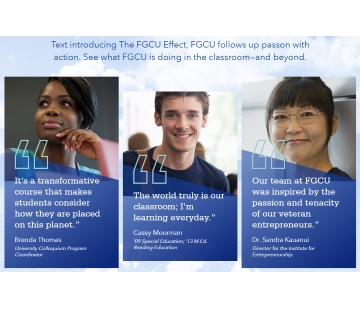
Description: This snippet links to three story pages. This snippet is very advanced and can take a lot of effort to maintain. Not recommended for sites with lower traffic. For lower traffic sites, we recommend one of the following testimonials: Testimonials | Horizontal | Manual or Testimonials | Text | Carousel.
Instructions: For each individual, a new stories page needs to be created. For each stories page to exist, they must all live inside of a stories section.
Watch how to set up a stories section and stories page
In the snippet, right click and edit link to change each profile's link. Navigate to the stories page that was created and insert the link. When inserting the path, the snippet will tell you to 'Select Product'. Select the drop down and select .xml (do not select .aspx) and insert link.Image sizes: (Images are required on this snippet)
1900x 1130px [Background] -
Testimonials | Circle | Carousel
Toggle More Info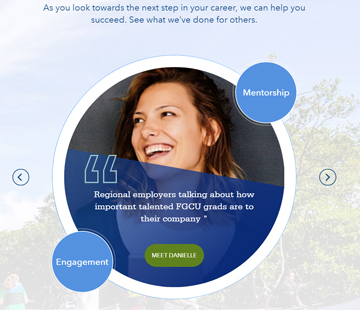
Description: This snippet is capable of containing 3 individuals. Each individual needs a default text, two text panels with a link for each panel, and a stories page. This snippet is very involved and will be difficult to manage. For less technical editors, we recommend one of the following testimonials: Testimonials | Horizontal | Manual or Testimonials | Text | Carousel.
Instructions: For each individual, a new stories page needs to be created. For each stories page to exist, they must all live inside of a stories section.
Watch how to set up a stories section and stories page
In the snippet, right click and edit link to change each profile's link. Navigate to the stories page that was created and insert the link. When inserting the path, the snippet will tell you to 'Select Product'. Select the drop down and select .xml (do not select .aspx) and insert link.Image sizes: (Images are required on this snippet)
1900px x 1615px [Background] This image can be a bit pixelated due to the image size and requires photo editing skills to create a white faded overlay.
Watch a video on how to create a white faded background
750px x 750px [Testimonial images x 2-3] -
Testimonials | Horizontal | CTA
Toggle More Info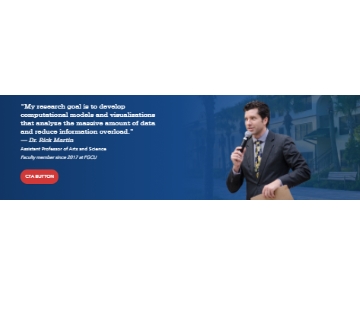
Description: This quote callout comes with a CTA button and has a parallax image on the right side. On mobile the snippet re-arranges itself to have a vertical gradient. Due to the image difficulty, we only recommend this snippet to those who are skilled in photo-editing. For less photo-technical editors, we recommend one of the following testimonials: Testimonials | Horizontal | Manual or Testimonials | Text | Carousel.
Instructions: Right click and edit image to change out the two required images. Right click and edit link on the button to add a link to the button. The button is not required and can be deleted.
Image sizes: (Images are required on this snippet)
835px x 600px [Background]
835px x 500px [Faculty/Staff photo] (This image must be a transparent .png since it acts as a parallax) It's recommended that you download the image to use it as a template and line up the photos. -
Testimonials | Horizontal | Dynamic
Toggle More Info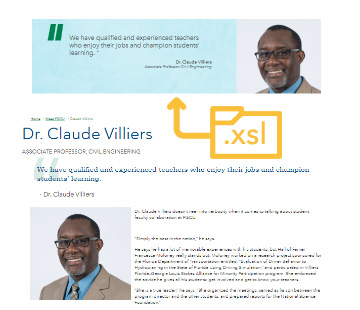
Description: This snippet pulls information from a single testimonial story xml file. To pull multiple testimonilas stories either insert the snippet multiple times or use the Stories Page template.
Instructions: Right click on the Story Page Link, Insert/Edit Link, Select the Browse button, change to Production or Wedev, navigate to the path the testimonial story lives and select the desired .xml file. Make sure to remove the values on CSV LISTING OF CATEGORIES.
Image sizes: N/A
-
Testimonials | Horizontal | Manual
Toggle More Info
Description: This snippet has a simple quote and an image to represent that person speaking about the quote.
Instructions: Right click and edit image to change out images.
Image sizes: (Images are required on this snippet)
390px x 360px [image] -
Testimonials | Vertical | Manual
Toggle More Info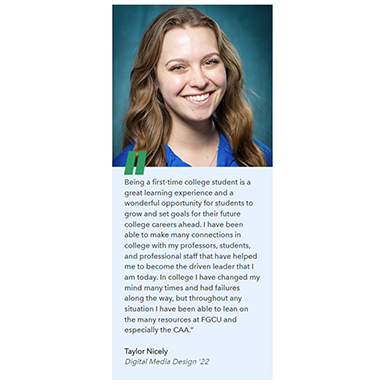
Description: This snippet has a simple quote and an image to represent that person speaking about the quote.
Instructions: Right click and edit image to change out images.
Image sizes: (Images are required on this snippet)
400px x 400px [image] -
Testimonials | Text | Carousel
Toggle More Info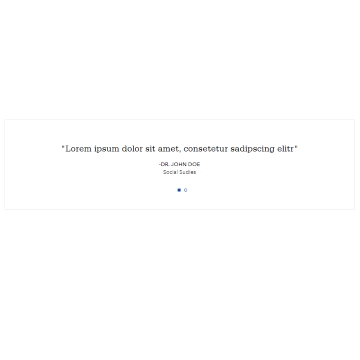
Description: A testimonial that shows faculty/staff or student quotes and automatically rotates through quotes.
Properties: The number represents the amount of seconds between slides. If you want to disable the timer, leave this field blank.
Instructions: Set the amount of quotes that will be displayed by right-clicking, add new row, to add additional quotes.
Category: Web Components
-
Web Component | Content Wizard
Toggle More Info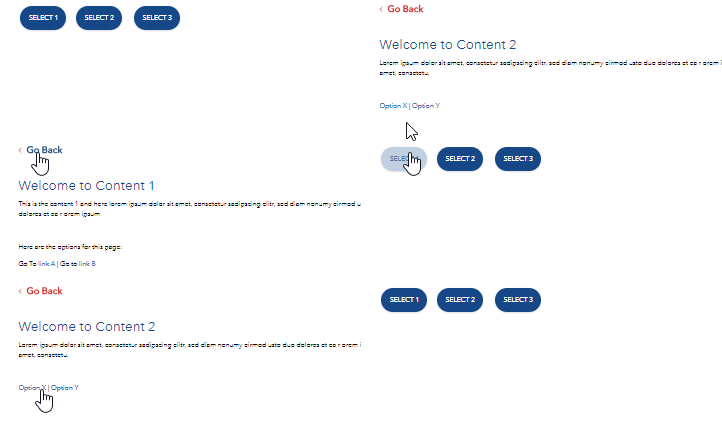
Overview: Creates a custom step content blocks based on user defined path.
Functionality: Follow the default content included in the snippet to define your own custom paths. You can link from one step to any of the steps in the list. To link use the left colum id as the anchor value then create any link button and link to that anchor name. The snippet will automatically add a back button as the user navigates trough the Content Wizard.
-
Web Component | Drop Down List Links
Toggle More Info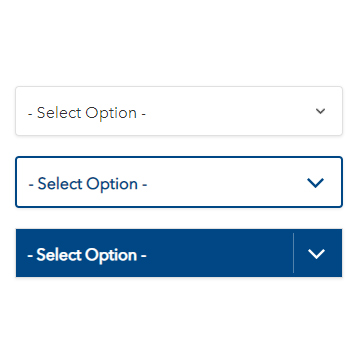
Overview: This component makes a drop down that can link to other pages.
Functionality: Right click and add new row to add more options/links or remove rows to delete options/links that are not needed. Right click each link to edit the links for each item.
Properties: Use blue-border or blue-solid to change the design of the dropdown menu.
-
Web Component | Media-Query
Toggle More Info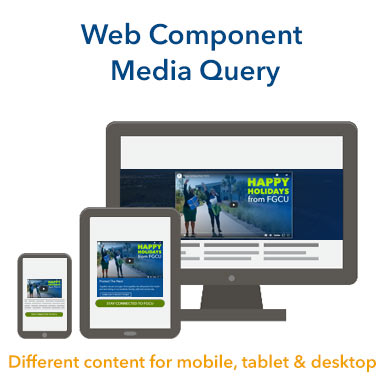
Overview: This snippet allows content to display 3 different break points, good for images to take up less vertical height on mobile.
Functionality: Place the content of in each column for each break point.
Caution: Use sparingly, even though something is hidden, it is still being rendered. As an example, if a whole page is placed in this snippet 3 times, the page will still load all three versions, making the page file size larger and the page will load slower.
Note: This snippet should not be used to reduce the experience of mobile users. The experience from mobile, to tablet, to desktop should remain fairly similar in what they can read and gather contextually. This snippet is best used for saving vertical height or producing a different flavor of the content.
-
Web Component | Mobile Hider
Toggle More Info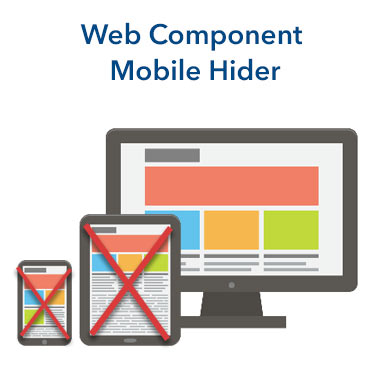
Overview: This snippet allows content to hide on specific devices. Useful for providing a different location for the content on mobile to control where the content renders on the page.
Functionality: Place the content in the snippet, then type in 'Desktop', 'Tablet', or 'Mobile'. Do not put in all three properties, that will just hide the snippet and cause additional load. If a snippet should be hidden temporairly, please use versions to save a back up of that snippet.
Caution: Use sparingly, even though something is hidden, it is still being rendered.
Note: This snippet should not be used to reduce the experience of mobile users. The experience from mobile, to tablet, to desktop should remain fairly similar in what they can read and gather contextually. This snippet is best used for saving vertical height or producing a different flavor of the content.
-
Web Component | Responsive Iframe
Toggle More InfoOverview: This snippet allows for pages to be captured and embedded into an iframe. This is usually installed by the web team and should not be touched once installed.
Functionality: Right click the 'url' link and click edit link to embed a non-responsive page into the page.
-
Web Component | Show Content
Toggle More Info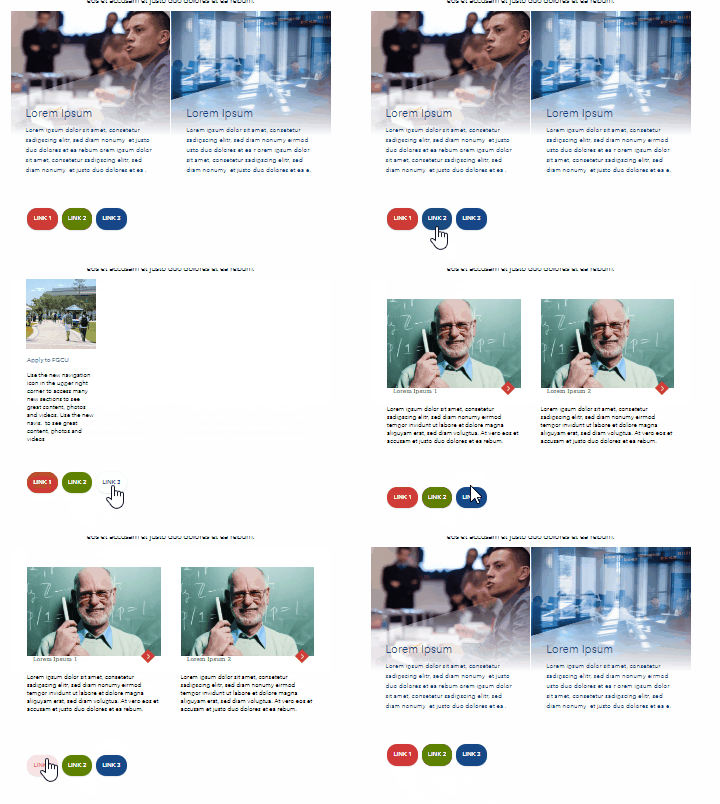
Overview: This snippet allows certain content to be shown after the click of a button.
Functionality: Use a #hashtag link as the value wherever you want the link. The #hashtag value must be equal to the id that is assigned in the snippet.
Category: Accordions
-
Accordions | 2 up | Combo
Toggle More Info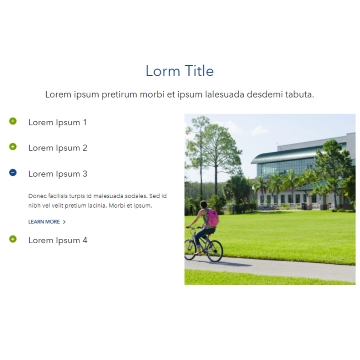
Overview: This snippet allows content to be categorized into expandable boxes that reveal information when the user clicks on the '+' symbol. The content in the left column should be short and pertain to the image on the right.
Functionality: Right click and add new row to add more accordions or remove rows to delete rows that are not needed.
Image sizes: (Images are required on this snippet)
600x 600px [Image]
For Experienced Users: The height can be less or more to accomodate the accordion heights. -
Accordion
Toggle More Info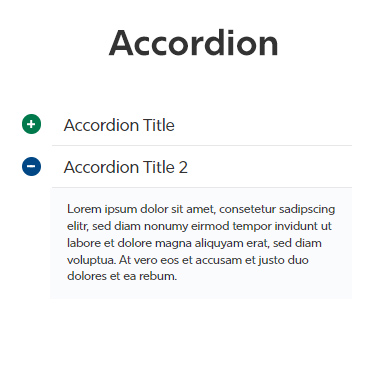
Overview:
This snippet is designed to reveal information when the user clicks on the '+' symbol.
SEO Best Uses:
Use sparingly, hiding content is not good for SEO and accordion content should have topics that relate to the heading immediately above it.
Functionality:
Right click and add new row to add more accordions or remove rows to delete rows that are not needed.
Properties:
- backtotop: adds a back to top button inside each accordion.
- expandall: includes an expand all button in the top right corner of the accordion.
Note: If there's only 1 accordion, the snippet will remove the Expand All feature.
-
Accordions | Show-hide
Toggle More Info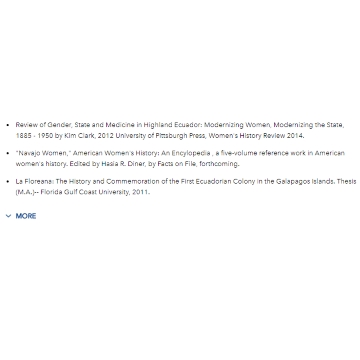
Overview: Reveals the full text when clicking show more.
Functionality: Put exposed content in the left cell, and hidden/more content in the right cell.
Category: Contact
-
Contact | Department
Toggle More Info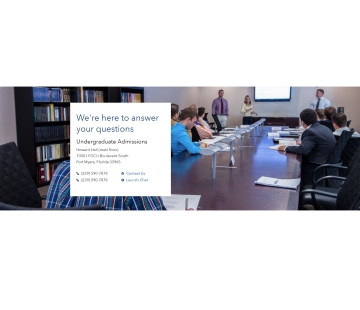
Overview: This full-width snippet is designed for contacting a department or in cases where it's a one person contact for the whole department, this can be useful on either homepages at the bottom of the page, or at the bottom of an about page.
Functionality: Click the show-blocks tool in the editor to show the block distribution. If wanting to replicate the default design, don't delete the paragraphs. If needing this snippet to be more flexible to allow more or less users, using variations of enter and shift-enter can be used to create different formats and spacing.
-
Contact | Directory | 2 Column
Toggle More Info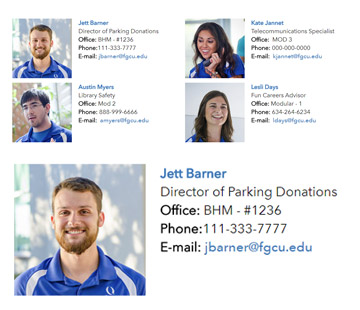
Overview: This snippet creates two columns of faculty staff members.
Properties: Set the properties to Fixed to keep the snippet at it's default state, or Open to allow each field to be customized. Notice 'Office / Field 2'; by setting the snippet to open, you are now using 'Field 2'. If using open fields, it's a good practice to use this format for the fields: "Subject: text" so you can replicate fields like "Email: user@fgcu.edu". The layout parameter can be set to "text" or "thumbnail", use text if no thumbnail is used.
Functionality: Setting Modal or Links to Modal or Link will give you different results. Setting it as a link will mean every time the user clicks on the staff member's name, they will be sent to a link. Setting this to Modal will open a pop-up/modal to view the staff member's full bio. Leaving this field blank will make the staff member's name unclickable.
Image sizes: (Images are optional on this snippet)
This snippet is flexible to allow no image and comes with avatars if the staff member's photos are missing.
260x 260px [Faculty/Staff photos] -
Contact | Directory | Dynamic
Toggle More Info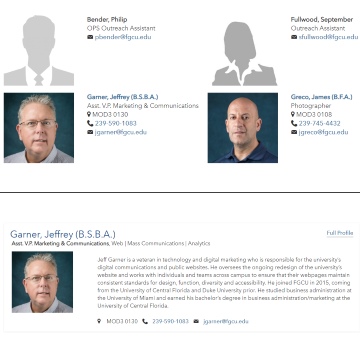
Overview: This snippet creates two columns of faculty staff members from the 蘑菇TV Faculty/Staff database system.
--------
Properties: [The Second Row, under the Title of the Snippet]
Type in either "text" or "thumbnail" followed by a comma and "sortaz" or "sortmanual".
Examples: text, sortmanual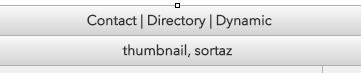
Details on all Properties:
"1column","2column","3column","4column", "text" controls layout and whether to hide the photos or show the photos.
"sortaz" or "sortmanual" controls the sorting of the manual user list.
"staff" or "faculty" can be added to control the type of employee.
"azindex" parameter can be added to have an AZ Index selector
"nophone" , "noemail" , "notitle" , "nofocus", "nooffice" Hide additional fields with any of these parameters.
*Note only the Thumbnail and Sort properties are important, the rest are optional.
All parameters added to the properties cell should be seperate by commas.
Examples: thumbnail, sortmanual, staff, azindex, nophone, noemail, no office--------
Department IDs: [First Column]
This column can be left blank if wanting to manually insert users.
This snippet can be set to a department id or a csv of email prefix, or both(appends users). You can also remove users with the remove list.BUTTON (ONLY EDIT BUTTON MESSAGING, STYLING, AND ALIGNMENT) ANCHOR ID directorydynamic_departmentid Anchor id Title Content directorydynamic_departmentid Department ID List To set the department ID use any of the following IDs:
DEPT ID DEPARTMENT NAME S040300 Academic & Curriculum Support S040301 Academic & Curriculum Support Admin S040050 Academic Affairs Business Operations S300100 Academic Engagement S300138 Academic Success S300157 Academic Success Coach Administration S300159 Academic Success Coach Operations S300130 Academic Support Programs S040520 Accelerated Collegiate Experience S100221 Accounts Payable S100242 Accounts Receivable S300131 Adaptive Services S300153 Adaptive Services Administration S300151 Adaptive Services Assistant Director S300150 Adaptive Services Coordinator S300152 Adaptive Services Testing SUP-ORG-16 Administrative Leaders S100300 Administrative Services S100000 Administrative Services & Finance S100010 Administrative Services & Finance Operations S300327 Admissions Evaluations S300321 Admissions Marketing S300323 Admissions Operations S300326 Admissions Processing S200220 Advancement Accounting S200210 Advancement Services S300142 Advising-College of Arts & Sciences S300143 Advising-College of Business S300146 Advising-College of Education S300144 Advising-College of Engineering S300145 Advising-College of Health & Human Services S200600 Alumni Relations S200330 Annual Giving Development S300233 Aquatics S300278 Aquatics Coordinator S040130 Assessment & Accreditation S040200 Associate VP of Research & Dean, Graduate Studies S030000 Athletics S030018 Athletics Academic Advising S030100 Athletics Academic Enhancement S030015 Athletics Administration Alico S030016 Athletics Administration OSC S030200 Athletics Advancement S030019 Athletics Advancement Operations S030020 Athletics Business Office S030300 Athletics Compliance S030006 Athletics Cross Country S030400 Athletics Facilities S030500 Athletics Financial Operations S030600 Athletics Marketing S030900 Athletics Medicine S030700 Athletics Medicine Administration S030001 Athletics Men's Baseball S030002 Athletics Men's Basketball S030009 Athletics Men's Golf S030004 Athletics Men's Soccer S030012 Athletics Men's Tennis S030022 Athletics Sports Administration S030800 Athletics Sports Information S030710 Athletics Strength & Conditioning S030610 Athletics Ticket Operations S030021 Athletics Ticketing Office S030003 Athletics Women's Basketball S030017 Athletics Women's Basketball Operations S030010 Athletics Women's Golf S030005 Athletics Women's Soccer S030011 Athletics Women's Softball S030008 Athletics Women's Swimming & Diving S030013 Athletics Women's Tennis S030007 Athletics Women's Volleyball S100131 Audio Visual Services S100840 Benefits S050800 Bower School of Music & the Arts S050808 Bower School of Music & the Arts Academic Support S050813 Bower School of Music & the Arts Ceramics S050801 Bower School of Music & the Arts Drawing & Printmaking S050805 Bower School of Music & the Arts Events S050806 Bower School of Music & the Arts Gallery S050816 Bower School of Music & the Arts Gallery Assistant S050814 Bower School of Music & the Arts Instrumental Music S050811 Bower School of Music & the Arts Keyboard Studies S050815 Bower School of Music & the Arts Music Education S050812 Bower School of Music & the Arts Music Program S050817 Bower School of Music & the Arts Music Technology S050803 Bower School of Music & the Arts Music Theory S050804 Bower School of Music & the Arts Music Theory & Composition S050807 Bower School of Music & the Arts Orchestra S050809 Bower School of Music & the Arts Sculpture S050802 Bower School of Music & the Arts Theatre S200422 Broadcast Technology S100621 Building Maintenance S100243 Bursar Operations S100160 Business Applications S100162 Business Applications Development S100163 Business Applications Support S100161 Business Applications Systems Admin & Reporting S100320 Business Services S100321 Business Services Marketing & Compliance SUP-ORG-18 Business Services Operations S100322 Business Services Specialist S300210 Campus Life S300272 Campus Life Administration S300277 Campus Rec Operations S300230 Campus Recreation S300276 Campus Recreation Administration S300231 Campus Recreation Facility Operations S300275 Campus Recreation Marketing S300232 Campus Recreation Programs S100310 Campus Reservations S300224 CAPS Administrative Operations S300222 CAPS Training & Development S300111 Career Development Services SUP-ORG-20 Cashier's Office S300133 Center for Academic Achievement S060900 Center for Agribusiness S050450 Center for Environmental & Sustainability Education S100630 Central Receiving S050430 Coastal Watershed Institute S050000 College of Arts & Sciences S050015 College of Arts & Sciences Admin S050019 College of Arts & Sciences Administration S050010 College of Arts & Sciences Administrative Operations S050020 College of Arts & Sciences Business Operations S050021 College of Arts & Sciences Operations S070000 College of Education S070001 College of Education Business Operations S070110 College of Education Communication & Engagement S070010 College of Education Program Operations S070100 College of Education Student Support Services S090010 College of Engineering Administrative Operations S090020 College of Engineering Engagement & Outreach S090111 College of Engineering Lab Coordinator S090110 College of Engineering Teaching Labs S080510 Community Counseling Center S300113 Community Engagement S100860 Compensation & Classification S300236 Competitive Sports S090202 Computer Science Program S100312 Conference Programs S040110 Continuing Education & Off Campus Programs S040116 Continuing Education & Off-Campus Programs Business S300220 Counseling & Wellness Services S060100 Department of Accounting S090300 Department of Bioengineering S050500 Department of Biological Sciences S050504 Department of Biological Sciences Cell Biology & Virology S050505 Department of Biological Sciences Human Anatomy S050502 Department of Biological Sciences Human Biology S050501 Department of Biological Sciences Lab S050503 Department of Biological Sciences Lab Tech S050506 Department of Biological Sciences Virology S051100 Department of Chemistry & Physics S051102 Department of Chemistry & Physics Biochemistry S051103 Department of Chemistry & Physics Lab S051101 Department of Chemistry & Physics Organic Chemistry S090101 Department of Civil and Environmental Engineering S090103 Department of Civil and Environmental Engineering Faculty S090102 Department of Civil Engineering S050201 Department of Communication S050200 Department of Communication & Philosophy S050016 Department of Communication & Philosophy Administration S090400 Department of Construction Management S090401 Department of Constuction Management Faculty S080500 Department of Counseling S070600 Department of Curriculum, Instruction & Culture S050410 Department of Ecology & Environmental Studies S050411 Department of Ecology & Environmental Studies Algae & Cyanobacteria S050414 Department of Ecology & Environmental Studies Aquatic S050412 Department of Ecology & Environmental Studies Marine S050413 Department of Ecology & Environmental Studies Water Resources S070501 Department of Educational Technology S090100 Department of Environmental & Civil Engineering S060201 Department of Finance S060200 Department of Finance & Economics S080300 Department of Health Sciences S060300 Department of Information Systems & Operations Management S051300 Department of Integrated Studies S050900 Department of Justice Studies S050700 Department of Language & Literature S070500 Department of Leadership, Technology & Research S060400 Department of Management S050420 Department of Marine & Earth Sciences S050421 Department of Marine & Earth Sciences Administration S060500 Department of Marketing S050300 Department of Mathematics S050301 Department of Mathematics Administration S051000 Department of Political Science & Public Administration S051001 Department of Political Science & Public Administration Justice S050600 Department of Psychology S080200 Department of Rehabilitation Sciences S051200 Department of Social & Behavioral Sciences S051202 Department of Social & Behavioral Sciences Anthropology S051201 Department of Social & Behavioral Sciences History S080400 Department of Social Work S090200 Department of Software Engineering S090201 Department of Software Engineering Faculty S070300 Department of Teacher Education S200300 Development S040700 Digital Learning S300324 Diversity & Community Outreach S200320 Donor Stewardship S070610 ELLM Literacy Program S100410 Emergency Management S090500 Emergent Technologies Institute S100870 Employee Relations S090021 Engineering Outreach S300331 Enrollment S300300 Enrollment Management S040820 Entrepreneurship Instruction S040810 Entrepreneurship Program S100330 Environmental Health & Safety S100311 Event Planning S100313 Event Planning Administration S100314 Event Planning Operations S200500 Events & Special Projects S090104 Evironment Engagement Program S300141 Exploratory Advising S300160 Exploratory Advising Administration S100611 Facilities Contracts S100700 Facilities Planning S040541 Faculty Development Undergrad Studies S040900 Faculty Senate S040111 蘑菇TV Complete S100230 Finance & Accounting S300312 Financial Aid & Scholarships S300314 Financial Aid Advising S300313 Financial Aid Operations S300311 Financial Aid Services S100234 Financial Statements & Audits S300120 First Year Experience S300235 Fitness Programs S000000 蘑菇TV S300215 Fraternity & Sorority Life S050810 Gallery S020000 General Counsel S020100 General Counsel Administrative Operations S100231 General Ledger & Treasury S010200 Government Relations S300325 Graduate Admissions S040220 Graduate Studies S040205 Graduate Studies Administrative Operations S100623 Grounds Maintenance S040510 Honors College S040515 Honors College Administrative Operations S300240 Housing & Residence Life S300248 Housing Assignments S300241 Housing Business Operations S300263 Housing Desk Operations S300279 Housing Information Systems S300242 Housing Maintenance Operations S300247 Housing Marketing S300246 Housing Operations S100830 HR Support & Employment S100820 HRIS & Data Systems S100800 Human Resources S100810 Human Resources Administrative Operations S100622 HVAC Maintenance S100100 Information Technology Services S100150 Infrastructure S100110 Infrastructure and Operations S010500 Institutional Equity & Compliance S040120 Institutional Research & Analysis S040710 Instructional Technology S010400 Internal Audit S040610 International Programs S040600 International Services S300112 Internships & Co-ops S080600 Kleist Health Education Center S300218 Leadership Development S040410 Library Archives & Special Collections S040420 Library Business Services S040430 Library Collections Management S040451 Library Collections Management Technical Services S040432 Library Customer Services S040433 Library Customer Services Extended Operations S040460 Library Extended Hours Operations S040440 Library Research & Instruction S040400 Library Services SUP-ORG-10 Library Services Operations S040450 Library Technical Services S040431 Library Technology & User Experience S070200 Little Eagles Learning Center S040540 Lucas Center for Faculty Development S060000 Lutgert College of Business S060002 Lutgert College of Business Administration S060020 Lutgert College of Business Administrative Operations S060001 Lutgert College of Business Corporate Programs S060010 Lutgert College of Business Operations S060011 Lutgert College of Business Operations Accounting S200310 Major Gift Development S080000 Marieb College of Health & Human Services S080050 Marieb College of Health & Human Services Operations S200120 Media & Public Relations S200412 Media Sales S300251 Medical Services S300212 Multicultural & Leadership Development S300217 Multicultural Development S100120 Network Security S300121 New Student Programs S300245 NLV/WLV S300261 NLV/WLV Maintenance S300252 Nursing S080210 Occupational Therapy Program S010501 Office of Institutional Ethics and Compliance Deputy Title IX S010100 Office of the Chief of Staff S010110 Office of the Chief of Staff Administrative Operations S010120 Office of the Chief of Staff Business Operations S100170 Office of the CIO S100171 Office of the CIO Business Operations S010000 Office of the President S010050 Office of the President Administrative Operations S300330 Office of the Registrar S010300 Ombuds S100235 Operations & Data Security SUP-ORG-12 Orientation Leaders S300234 RecVentures S300137 Outreach Programs SUP-ORG-14 Parent Leaders S100420 Parking Services S100233 Payroll S060600 PGA Golf Management Program S200130 Photography S100600 Physical Plant S100610 Physical Plant Business Operations S100620 Physical Plant Maintenance Operations S080700 Physician Assistant Studies S040100 Planning & Institutional Performance S040101 Planning & Institutional Performance Analytics S100430 Police Communications S300221 Prevention & Wellness Services S100212 Procurement Accounting S100210 Procurement Services S300110 Professional & Career Development Services S100232 Property & Construction Accounting S040000 Provost & VP for Academic Affairs S200140 Publications Writing & Editing S100211 Purchasing S300333 Records & Registration S060210 Regional Economic Research Institute S040115 The 蘑菇TV Academy S040210 Research & Sponsored Programs S300243 Residence Education S300262 Residential Student Conduct S100331 Risk Management S300332 Scheduling S040800 School of Entrepreneurship S080100 School of Nursing S060700 School of Resort & Hospitality Management S060702 School of Resort & Hospitality Management Administration S060701 School of Resort & Hospitality Management Internship S300114 Service Learning S300115 Service Learning Administration S060800 Small Business Development Center S300122 Soar in 4 S300244 SOVI S300260 SOVI Maintenance S070400 State Personnel Development Grant S300158 Step Ahead Program S200321 Stewardship S010600 Strategy and Program Innovation S100241 Student Accounts S300214 Student Care Services S300213 Student Conduct S300223 Student Counseling Services S300200 Student Engagement S300201 Student Engagement Administration S300273 Student Engagement Coordinator S300310 Student Financial Services S300270 Student Government S300250 Student Health Services S300211 Student Involvement S300271 Student Media S300216 Student Programming S300274 Student Programming Coordinator S300000 Student Success & Enrollment Management S300010 Student Success & Enrollment Management Business Operations S300135 Student Support Services Classic Program S300134 Student Support Services STEM Program S040620 Study Abroad S300136 Talent Search S070601 Teacher Immersion Program S300132 Testing & Assessment S050400 The Water School S050018 The Water School Administration S300156 Trio & Outreach Programs S300155 Tutoring Services S090000 U.A. Whitaker College of Engineering S090001 U.A. Whitaker College of Engineering Administration S300322 Undergraduate Recruitment S040550 Undergraduate Scholarship S040551 Undergraduate Scholarship Research S040500 Undergraduate Studies S040501 Undergraduate Studies Mentoring S040502 Undergraduate Studies Mentoring Admin S300320 University Admissions S200000 University Advancement S200200 University Advancement Finance S300140 University Advising S100500 University Budgets S100240 University Bursar S040530 University Colloquium S040531 University Colloquium Admin S100200 University Controller S100201 University Controller Administration S100130 University Help Desk S100133 University Help Desk Support S100631 University Mail Services S200100 University Marketing & Communications S100400 University Police Department S100411 University Police Department Patrol Operations S100412 University Police Department Services S200110 University Web Design S100140 User Services S100141 User Services Support S050440 Vester Field Station S200432 Video Production Services S200401 WGCU Administrative Operations S200420 WGCU Broadcast S200411 WGCU Communications S200410 WGCU Development S200421 WGCU Finance S200431 WGCU News S200430 WGCU Programming S200400 WGCU Public Media S050100 Whitaker Center S050017 Whitaker Center for STEM Education S050101 Whitaker Center for STEM Education Administration S051310 Wings of Hope S030014 Women's Athletics Administration S100612 Work Management Center S300154 Writing Center (Ctrl + F on the above page, search for the department)
If the ID doesn't work from the above list, it may have been updated in the directory.
View current IDsManual/Add List: [Second Column]
Add users seperate by commas. This can be used in combination with the Department ID (First Column) to add missing users.
If "sortaz" is used as a parameter, the users will be sorted Alphabetically. If wanting to insert users based on manual order, use "sortmanual".
Remove List: [Third Column]
Remove users seperate by commas. This can be used in combination with the Department ID (First Column) to remove users who shouldn't show up in this list.-------
Incorrect/Missing Information for Faculty/Staff:
With the integration of Workday, there are still adjustments being made to who manages the different information.
Contact helpdesk@fgcu.edu with the information that you want to update and it will be routed appropriately. Changes will take at least 24 hours after the information has been entered in by the appropriate department.Adding Directory Pages for Faculty and Staff:
Creating a directory page for a faculty or staff member creates a unique page that will be connected to that individual's email prefix (the email without @fgcu.edu).
Once a page is created for a faculty/staff member, their name will go from black to a clickable blue link whenever they're pulled into the Contact | Directory | Dynamic snippet.Add new Faculty/Staff directory page:
Go to the and then create a new Profile Page Dynamic (if the user doesn't exists already) and make sure the file name is the email prefix.
Example: a user with the email of msmith@fgcu.edu should have the page name msmith.pcf
(you don't need to write ".pcf", just the prefix)Make updates to a directory page/Add bio information:
Go to their page in the , edit their information via the multi-edit tab and content region. When finished, save and publish the profile page.
The changes should reflect on the snippet and on the details page.Editing the Faculty/Staff members' photo:
To change the default image, go to the profile pictures folder inside of the . Upload a .jpg image with the email address prefix as the file name.
Example: a user with the email of msmith@fgcu.edu should have the page name msmith.jpg
The size of the image should be 260px W x 260px H.
Category: Featured
-
Featured | 2 up | Square
Toggle More Info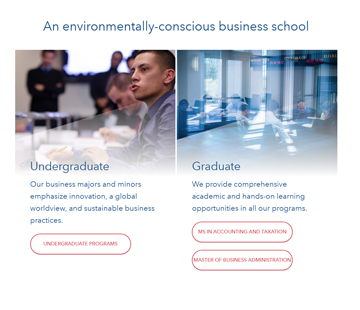
Overview: This snippet provides two CTA blocks, with one or more buttons per a block. These blocks should act as pathways to high importance pages.
Functionality: Add or remove buttons by inserting new links and changing the class of the button.
Image sizes: (Images are required on this snippet)
635x 500px [Images]
Do not change or remove the overlay image. -
Featured | 2 up | Square alt
Toggle More Info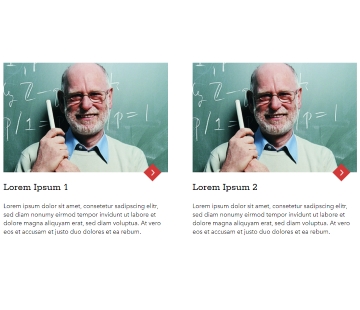
Overview: This snippet provides two CTA blocks, with one buttons per a block. These blocks should act as pathways to other pages.
Functionality: Add links to each block by right clicking and editing the Link1 and Link2, do not change the text to display.
Add blue to the first field to create a blue background, or leave it empty to have a white background.Image sizes: (Images are required on this snippet)
500x 330px [Images] -
Featured | 3 up | Square
Toggle More Info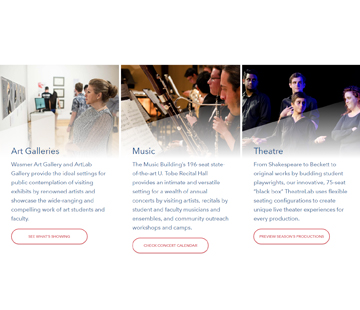
Overview: This snippet provides three CTA blocks, with one or more buttons per a block. These blocks should act as pathways to high importance pages.
Functionality: Add or remove buttons by inserting new links and changing the class of the button.
Image sizes: (Images are required on this snippet)
635x 500px [Images]
Do not change or remove the overlay image. -
Featured | 3 up | Square alt
Toggle More Info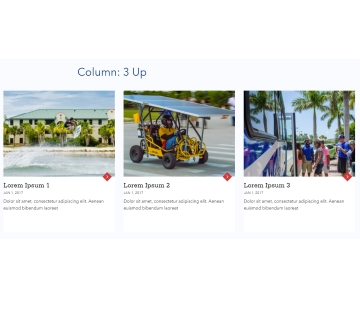
Overview: This snippet provides three or more CTA blocks, with one buttons per a block. When there are more than 3 items to display, the blocks act as a carousel.
Functionality: To add additional blocks, right click and add new row or copy row and paste row after.
Add links to each block by right clicking and editing the links, do not change the text to display.
The dates are optional and can be removed.Image sizes: (Images are required on this snippet)
500px x 390px [Images] -
Featured | 4 up | Square
Toggle More Info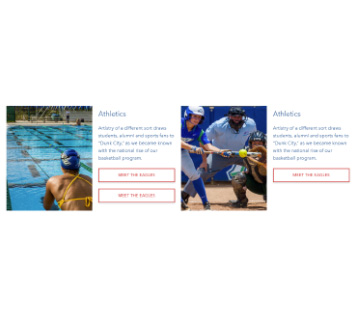
Overview: This snippet provides two columns of images and two columns of text with buttons.
Functionality: To add additional blocks, right click and add new row or copy row and paste row after.
Add links to each block by right clicking and editing the links, do not change the text to display.Image sizes: (Images are required on this snippet)
300x400 [Images] -
Featured | Circle | Images
Toggle More Info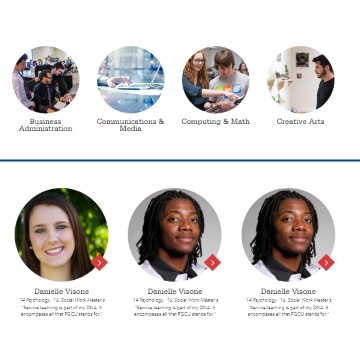 Overview: Circle images snippet.
Properties: The properties on this snippet provides the amount of columns per a row as well as control over last row alignment if it doesn't match number of columns of previous row.
At 3, each row will have 3 circles and will behave the same way as the Featured | 3 up | Circles snippet.
At 4, each circle will be reduced in size from 360px x 360px, to 225px x 225px.
Anything less than 3 or greater than 4 is not recommended, but can still be used in certain situations.Functionality: Right click and add new row to add additional circles.
Image sizes: (Images are required on this snippet)
360px x 360px [Images at property of 3]
225px x 225px [Images at property of 4]
Category: Feed
-
Feed | Custom
Toggle More InfoOverview: Pulls information from any feed(xml/json) local or external and parses the information according to the defined path/structure in the parammeters. This is useful for any feed that doesn't follow the typical rss feed structure.
Functionality: Change the values as desired to customize the feed.
-
Feed | News | Block
Toggle More Info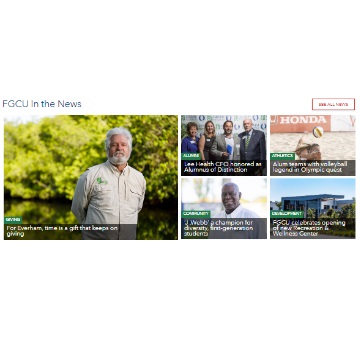
Overview: Display news feed from wp structured feed in a block format.
Instructions: Change the url to the desired feed source.
-
Feed | News | Carousel
Toggle More Info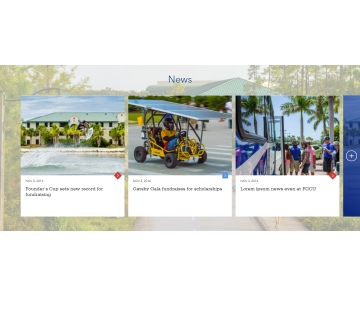
Overview: ---
Functionality: ---
-
Feed | News | Rows
Toggle More Info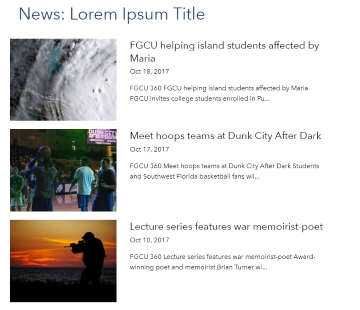
Overview: ---
Functionality: ---
-
Feed | Social | Combo
Toggle More Info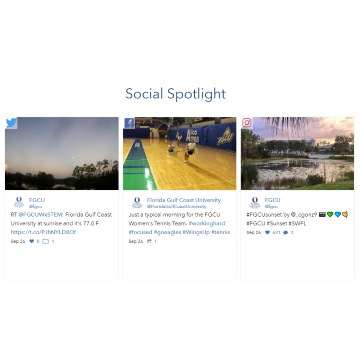
Overview: This feed combines one post from each of the social networks available(twitter, facebook, instagram).
Functionality: Put the name of the service (twitter, facebook, instagram) and the related username. Change the title in the title bar. If only two services are chosen then 2 posts from the last service + 1 post from the first service will be shown in order to fill up the 3 coulmns snippet display.
-
Feed | Social | Facebook
Toggle More Info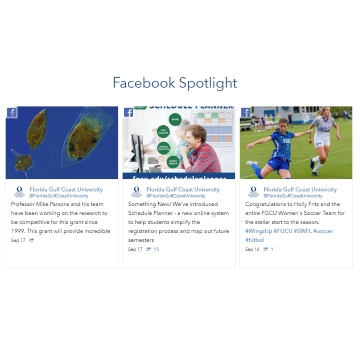
Overview: This feed pulls in the first three post from the Facebook feed, if an image isn't attached to the post then a Facebook image will appear.
Functionality: Add the username in the right cell to pull the social feed. To obtain the username go to the Facebook account/group's page, then evaluate the url. The url should look something like this: https://www.facebook.com/FloridaGulfCoastUniversity/
Copy what's in between the slashes after .com and paste it into the snippet.NOTE: Because of changes in Facebook policies, you need to give us admin role to the page in question to be able to pull the posts.
User needs to follow this steps to add role (select admin role)This is our account to add role to:fgcumarcomm@gmail.comAfter this has been completed please notify any of our OUCampus administrators.
-
Feed | Social | Instagram
Toggle More Info
Overview: This feed pulls in the first three photos from the Instagram feed.
(New Method - Works in 2021)
How to Use: In the second column (username/access token), put the username of the Instagram. (@fgcu would be fgcu, don't include the @)
(Old Method) API keys currently don't work:
Functionality: Add the access token in the right cell to pull the social feed.
How to obtain Access Token for Instagram Feed:
Option A:
Visual InstructionsOption B:
Technical/quick Instructions:
- Create a new Instagram Client by going to https://www.instagram.com/developer/clients/manage/
- Click on "Register a New Client" button on the top right to fill the form.
- On that form set all fields with appropriate values.
- Set "Valid redirect URIs" to: /
- Set "Privacy Policy" to: /generalcounsel/resources.aspx
- Save Changes
- Click Manage. Then on the Security tab of the Mange Instagram Client, Untick "Disable implicit OAuth" and save.
- Replace the following parameters in this URL with the values set in the form Instagram Client
- https://api.instagram.com/oauth/authorize/?client_id=CLIENT-ID&redirect_uri=REDIRECT-URI&response_type=token
- Authorize the Application if prompted.
- Copy the link from the browser with the ACCESS-TOKEN value to which you were redirected after the authorization.
- I.e.: http://your-redirect-uri#access_token=ACCESS-TOKEN
- Tick the option disabled in step 3(optional).
- Paste that code into the Instagram Snippet Access Token field.
- Save and Publish.
-
Feed | Social | Twitter
Toggle More Info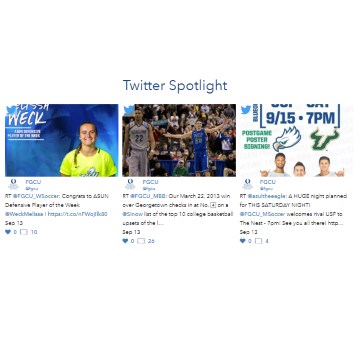
Overview: This feed pulls in the first three post from the Twitter feed, if an image isn't attached to the post then a Twitter image will appear.
Functionality: Add the username in the right cell to pull the social feed. To obtain the username go to the Twitter account's page, then evaluate the url. The url should look something like this: https://twitter.com/fgcu
Copy what's after the slash after .com and paste it into the snippet.
Category: Carousel
-
Carousel | Custom | AutoSlide
Toggle More Info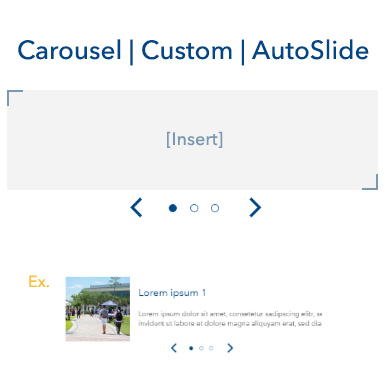
Overview: Creates a carousel based on any type of content.
Properties: If a number is given of AutoSlide the carousel will auto slide every X seconds. Remove the number to allow manual sliding/paused slider. (Number range is 1-9)
Seperate the timer with a comma and add 'border' to place a border around the slider. This can help if the contents are all various heights to keep everything contained.
Note: The time must be before border and the border must have a timer.
Acceptable formats:- 3, border
- 9
- [empty]
Broken formats:
- border, 9
- border
- 0
- [random character]
- , border
- 99 (Will result in 9, the first value is only chosen)
-
Carousel | Bottom | AutoSlide
Toggle More Info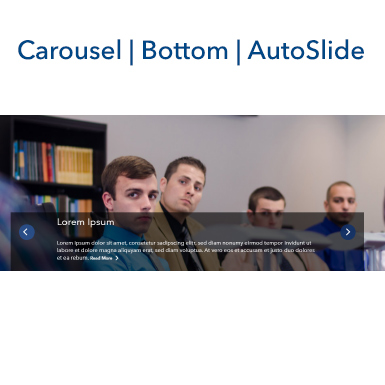
Overview: ----
Functionality: ----
Image sizes: (Images are required on this snippet)
---px x ---px [Background] -
Carousel | Centered | Blue
Toggle More Info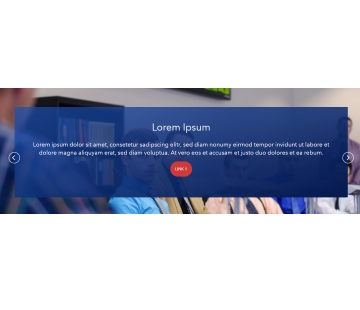
Overview: ----
Functionality: ----
Image sizes: (Images are required on this snippet)
---px x ---px [Background] -
Carousel | Radar | Bottom
Toggle More Info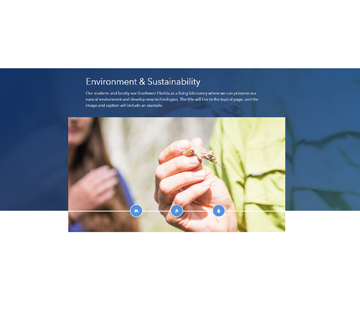
Overview: This snippet has text at the top of the snippet with a default image. The next 3 rows change the image and text in the pop up when clicking through each icon-button.
Functionality: To change the icon each button, right click and edit link for "pathway", "environment", and "restore", when editing the link, click the class dropdown and scroll down to buttons.
Watch video on how to select iconsImage sizes: (Images are required on this snippet)
1670px x 715px [Background]
1110px x 590px [Slide image x 4] -
Carousel | Radar | Left
Toggle More Info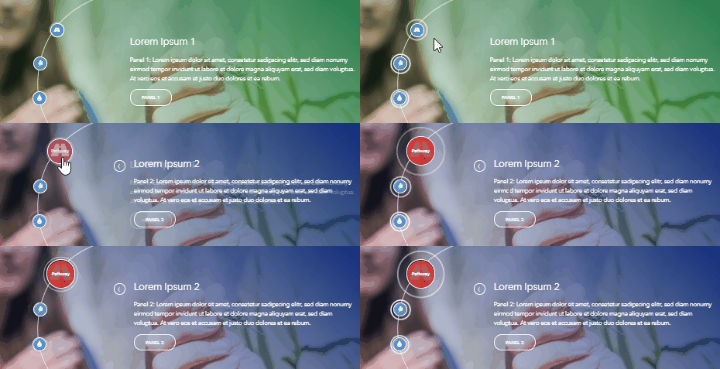
Overview: This snippet has a default image with the panel 1 row being the default state. The next 3 rows change the text when clicking through each icon-button.
Functionality: To change the icon each button, right click and edit link for "pathway", "environment", and "restore", when editing the link, click the class dropdown and scroll down to buttons.
Watch video on how to select icons
Right click and edit link on each 'Panel' button to change the links for each slide.Image sizes: (Images are required on this snippet)
1900px x 700px [Background]
Category: Container
-
Container | Text
Toggle More Info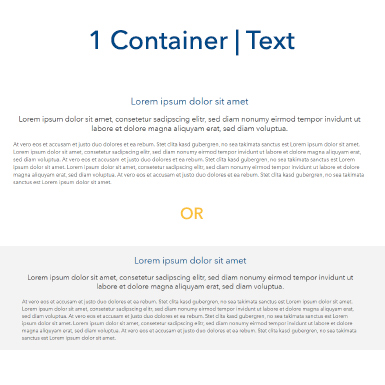
Overview: This snippet is the most common snippet, text should always go inside of this snippet unless using a different snippet.
Properties:
gray = Gray (with black text)
text container may have issues. (Check ADA compliance when using) -
Container | 2|3 1|3
Toggle More Info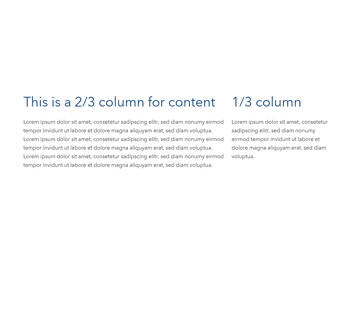
Overview: This snippet is a two column snippet where the left column can be set to 70% (2/3) or 30% (1/3)
Properties: Replace the text in the property for each column to either 2/3 or 1/3 to set which side will be the larger size.
gray = Gray (with black text) Background Color
-
Container | 3|4 1|4
Toggle More Info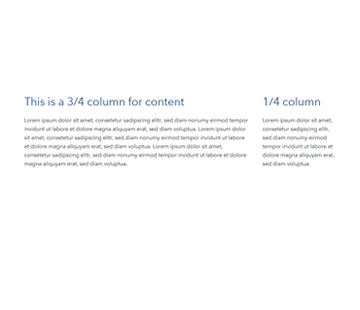
Overview: This snippet is a two column snippet where the left column can be set to 75% (3/4) or 25% (1/4)
Properties: Replace the text in the property for each column to either 3/4 or 1/4 to set which side will be the larger size.
gray = Gray (with black text) Background Color
-
Container | Background | Snippet Holder
Toggle More Info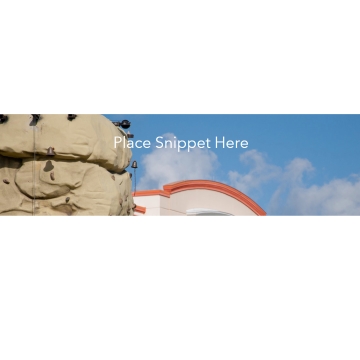
Overview: This snippet applies a background to any snippet that's placed inside of this one.
Properties: You can override the default "whitetext" color with "defaulttext" parameter to use the snippet's color instead.Functionality: Where the text says "place snippet here", remove the text and insert any snippet. This is an experimental snippet that requires understanding snippets inside of other snippets. If the snippets combination doesn't look bad and is breaking due to a transparency issue, contact the webteam and suggest your combination. Full width snippets or background snippets will not work.
Image sizes: (Images are required on this snippet)
1900px x 700px [Background] (The height/second value will either need more or less depending on the snippet placed inside)Approved snippets to go in this snippet:
Calendar | Simple -
Container | Multiple Columns
Toggle More Info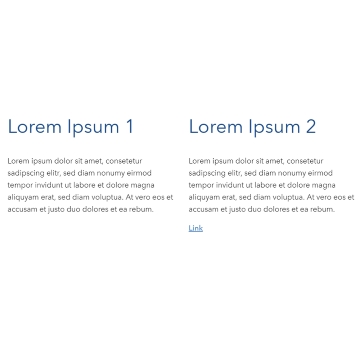
Overview: This snippet is a two column snippet where the snippet is 50% wide for each column.
Functionality: This snippet can have an additional column added to it by right clicking and adding a new column. This will convert the snippet to a 33/33/33 (33% wide for each column) snippet.
Additionally four columns will make the snippet 25/25/25/25 (25% wide for each column), however we do not recommend this.Properties:
Features-- Use no-outer-padding to remove padding from the left and the right side of the snippet.
Mobile-
- Use 1col, 2col, 3col, or 4col for different layouts when on mobile.
Tip: Publish to webdev to check on mobile how the display will look. If unsure, stick with 1col.
gray = Gray (with black text) Background Color
-
Container | Panel
Toggle More Info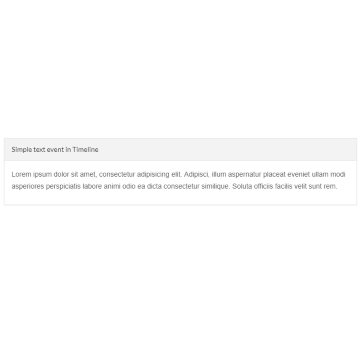
Overview: A simple container with a colored box background for the title.
Functionality: Each snippet is one panel. To get additional panels, insert the snippet multiple times.
The first column, 'Type' can be one of three: panel-default = gray, panel-success = Green, panel-primary = blue. This changes the color of the panel.Properties: Insert the name of the panel in the property.
Category: Pop-up
-
Pop-up | Simple
Toggle More Info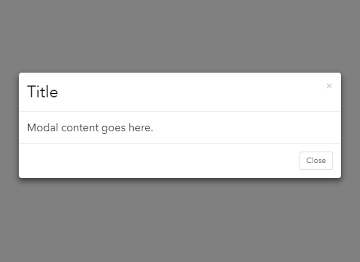
Overview: Creates a button where the snippet is placed, when the button is clicked, a pop up appears with either text or a page.
Functionality: Right click and edit link to rename the link's text to display, however do not edit the url. It should remain as a #.
The source can be either content or link.
Choosing content will take the text from the second field (Content).
Choosing link will open a webpage inside of the pop up acting as a small internal browser. We don't recommend this and should only be used in particular scenarios. If choosing link, set the button's url to the designated external link. -
Pop-up | Simple | Decoupled
Toggle More InfoOverview: Allows linking to a popup/modal content fired from a link/button placed anywhere in a page.
Functionality: Insert the snippet, you will get two snippets inserted: Pop-up | Simple | Decoupled and Pop-up | Decoupled | Button.
The Pop-up | Simple | Decoupled snippet acts as a hub for all of your IDs. Each ID needs to be unique.
The Decoupled Button Snippet can be moved anywhere on the page and inside of snippets. Do not remove the button from the snippet as the container talks to the Pop-up | Simple | Decoupled snippet.
Adjust the text, alignment, and button style of the button, but don't change the link or any other settings.View example of multiple decoupled pop-ups
Multiple Decoupled Snippets: Create a new row on the Pop-up | Simple | Decoupled for every pop-up that you wish to create on your page. This snippet can be located anywhere on the page since the pop-up will appear in the center of the screen no matter where it's place.
Insert additional Pop-up | Decoupled | Button snippets for each pop-up needed since rows will not work and the buttons can go anywhere on the page.
-
Pop-up | Simple | Multiple Columns
Toggle More Info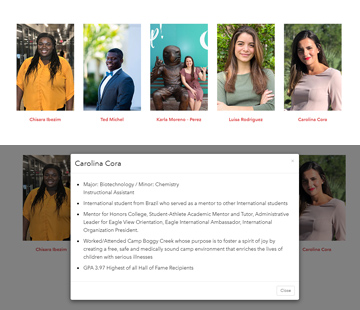
Overview: Allows popups/modals to open when clicking the link/button and image.
Functionality: Uses multiple columns snippet with a pop up feature, this acts as a template of a snippet inside another.
-
Pop-up | Source-Code | Decoupled
Toggle More InfoOverview: Allows linking to a popup/modal content fired from a link/button placed anywhere in a page using source coding.
Functionality: Insert the snippet anywhere on the page(it will invisible before being launched). Make sure to assign a anchor unique id if adding multiple instances.
Go to the link where from where you want to fire the popup to show once clicked. Once there go to Edit Source mode on the WYSIWYG Editor, identify the link and append this: data-remote="false" data-toggle="modal" data-target="#modal-id-ANCHORID_GOES_HERE" -
Pop-up | Splash
Toggle More Info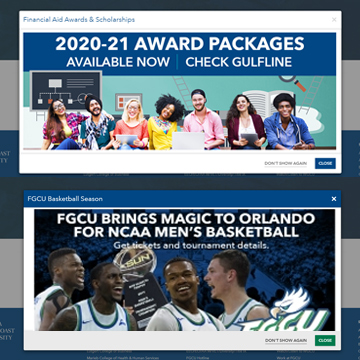
Overview: This snippet automatically appears after the page loads. The user can click to never see this pop up again and a cookie will be placed on their machine to make this snippet not reappear when they return to this page. The snippet is primarily used to show an image that alerts the user of a big event that they shouldn't miss. Misusing this snippet can cause high bounce rate and can worsen SEO for the page.
Functionality: Place an image in the content cell that represents the title.
The cookie name should be something unique that no one else will have. This could be something like 'housingmovein2020'. If two sites use the same cookie name, a user could click 'don't show again' and the user wouldn't be able to see pop ups using that same cookie name. (FYI: Cookies do expire and will not cause any issues to student or faculty/staff computers)Properties: Use blue to add a blue branded theme to the snippet.
Image sizes: (Images are recommended on this snippet)
1200px x 450px [Splash Image - Content] (height is flexible between 400px - 550px)
Category: Text + Image
-
Text + Image | 2 up
Toggle More Info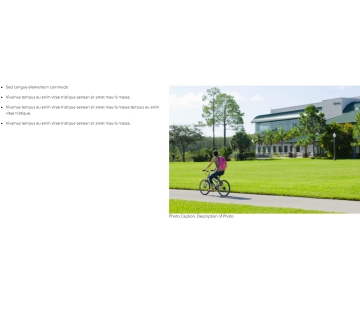
Overview: This snippet acts a two column container, any text on the left, any image on the right.
Functionality: Right click and insert/edit image to change the image.
Caption is optional and can be left blank.Image sizes: (Images are required on this snippet)
600px x 400px [Image] (any height can be used to fit the height of the text) -
Text + Image | Article
Toggle More Info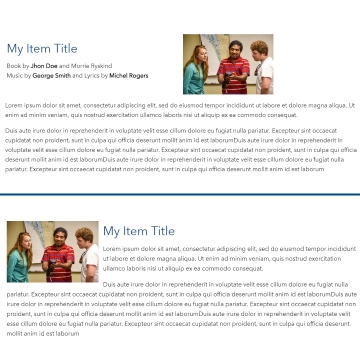
Overview: This snippet is best used for articles or events. The image fits in either the left corner or right corner depending on the properties.
Functionality: Right click and insert/edit image to change the image.
Properties: All available options include:
left,wrap-title
left
right
right,wrap-titleImage sizes: (Images are required on this snippet)
340px x 225px [Image] -
Text + Image | Full Width
Toggle More Info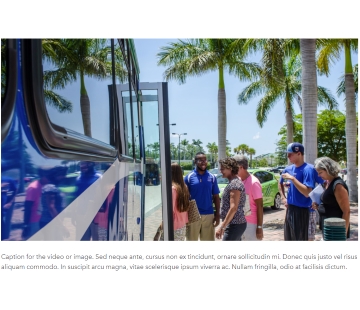
Overview: This snippet has a large image with an optional caption.
Functionality: Right click and insert/edit image to change the image.
Image sizes: (Images are required on this snippet)
1220px x 690px [Image] (The height is flexible to be any value) -
Text + Image | Wrapped
Toggle More Info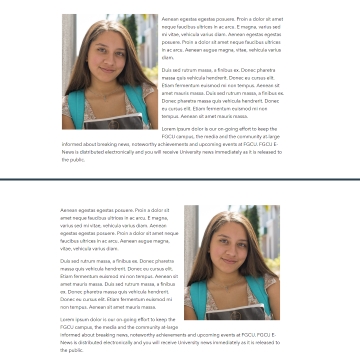
Overview: This snippet has an image wrapped around text either to the right or left.
Functionality: Right click and insert/edit image to change the image.
Type left or right in the float cell to adjust the placement of the image.Image sizes: (Images are required on this snippet)
400px x 480px [Image] (The height is flexible to be any value, the width is also flexible, but not recommended to go over 600px wide or less than 200px wide)
Category: Grid Box
-
Grid Box | 8 up
Toggle More Info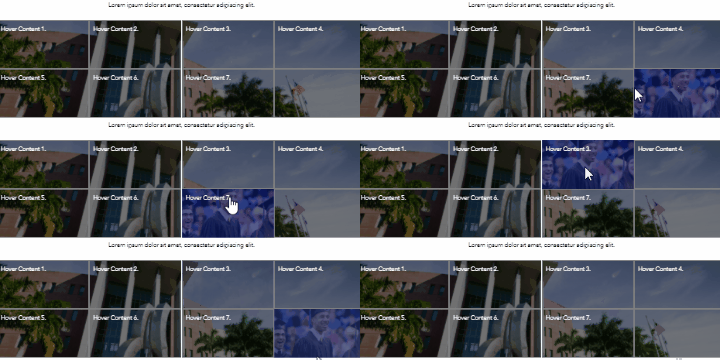
Overview: This snippet creates 8 paths that link off to different pages under one category. This can be used for 4, 7, or 8 links and is best used at the top of landing pages.
Functionality: Right click and edit link on each 'Hover Content' link to change the individual links for each button.
If only four boxes are needed, the last four can be deleted by right clicking and delete row.Image sizes:
1900px x 500px [Required Background]
500px x 250px [Optional Images x 8] -
Grid Box | Flexible | Blue
Toggle More Info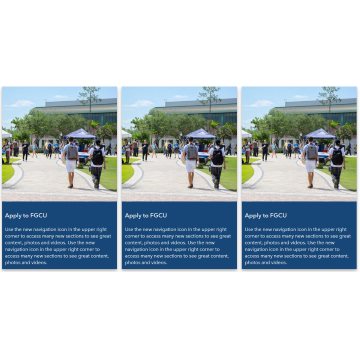
Overview: This grid box contains 2 - 4 boxes and is completely flexible. When hovering over this snippet, the whole box grows and is clickable.
Functionality: (Removing link will allow description to be rich content, using link parameter will remove any rich content from the description). All rows need to equal 24.
If the snippet needs to be two columns, add a row and make row 1 & 2 both 12. [12 + 12 = 24]
If the snippet needs to be three columns, add a two rows and make row 1, 2, 3 all 8. [8 + 8 + 8 = 24]
Other examples:
6 + 6 + 6 + 6 = 24 [4 columns]
10 + 8 + 6 = 24 [3 columns]
Only numbers that are allowed are 6, 8, 10, and 12. Do not exceed a total of 24 per snippet.Image sizes: (Images are required on this snippet)
Col 6 = 280x280, Col 8 = 390x280, Col 10 = 475x280, Col 12 = 570x280 -
Grid Box | Flexible | White
Toggle More Info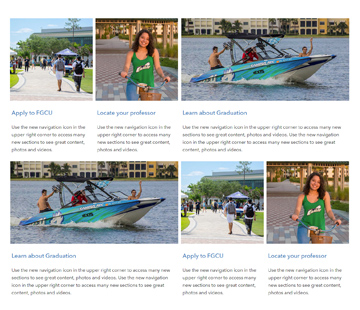
Overview: This grid box contains 2 - 4 boxes and is completely flexible. When hovering over this snippet, the background turns to gray and the whole box becomes clickable.
Functionality: All rows need to equal 24.
If the snippet needs to be two columns, add a row and make row 1 & 2 both 12. [12 + 12 = 24]
If the snippet needs to be three columns, add a two rows and make row 1, 2, 3 all 8. [8 + 8 + 8 = 24]
Other examples:
6 + 6 + 6 + 6 = 24 [4 columns]
10 + 8 + 6 = 24 [3 columns]
Only numbers that are allowed are 6, 8, 10, and 12. Do not exceed a total of 24 per snippet.Image sizes: (Images are required on this snippet)
Col 6 = 280x280, Col 8 = 390x280, Col 10 = 475x280, Col 12 = 570x280 -
Grid Box | Multi-color | 3 up
Toggle More Info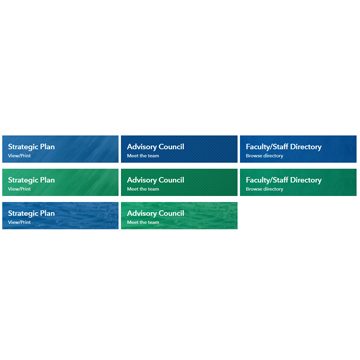
Overview: This snippet comes with three textured boxes that can stretch or shrink and be 1 of 2 colors, with 1 of 4 textures. Each box is entirely clickable.
Functionality: Not all 3 boxes are needed, additional rows can be deleted. To get more than three, re-insert the snippet. (After 6 boxes, the snippet starts to feel repetitive and is not recommended)
Color:
Different colors can be chosen: 1=Blue Waterfall, 2=Green Rock, 3=Blue Rock, 4=Blue Stripes, 5=Green Stripes, 6=Green Waterfall, 7= Blue Sea, 8=Green Sea
Stretch [Y/N]:
If using less than 3 boxes in one row, stretching will make them fill the empty space of the missing boxes. This can be useful if using only one and inserting this snippet into a Container | 2|3 1|3 or Container | Multiple Columns to make the single box stretch to fit the container.
(Optional) CTA Label:
To add a CTA link create text, this does not need a link, since the link will take from the link cell. -
Grid Box | Tri-color | 3 up
Toggle More Info
Overview: A blue, green, and red overlayed over one full-width image. Each colored box has a clickable link.
Functionality: Right click and insert/edit link to change each link. Right click and insert/edit image to change the main image. The blue, green, and red appear automatically and cannot be changed.
Image sizes: (Images are required on this snippet)
1900px x 500px [Background]
Category: Tabs
-
Tabs | Horizontal
Toggle More Info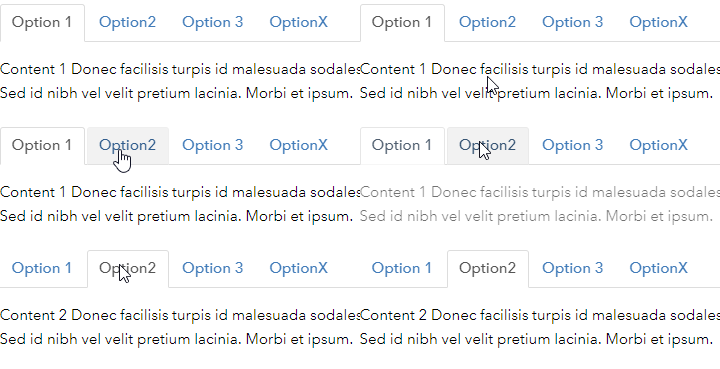
Overview: This snippet creates horizontal tabs that change the content displaying inside as the user clicks through the tabs.
Functionality: Right click and add a new row to add more tabs or remove rows to delete tabs.
Set the active tab to set which tab is open on loading a page. WARNING: Do not set more than one active, this will break this snippet. -
Tabs | Vertical
Toggle More Info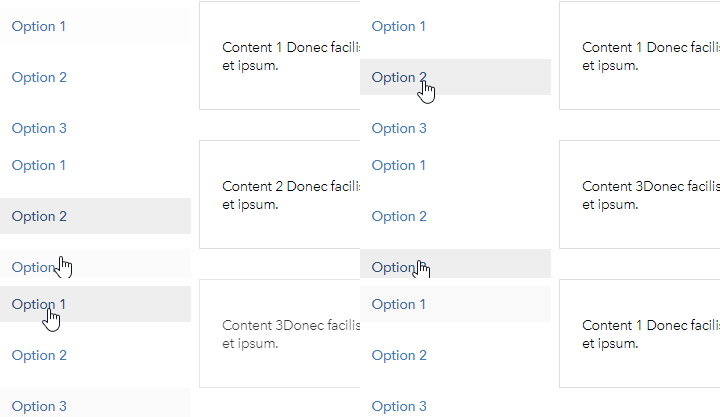
Overview: This snippet creates vertical tabs that change the content displaying inside as the user clicks through the tabs.
Functionality: Right click and add a new row to add more tabs or remove rows to delete tabs.
Set the active tab to set which tab is open on loading a page. WARNING: Do not set more than one active, this will break this snippet.
Completely Removed Snippets
Please replace these snippets with a newer or alternative snippet.
-
Accordions | 2 up | Combo
Toggle More InfoReplace with: Accordion | Border + Multiple Columns
-
Accordions | Simple
Toggle More Info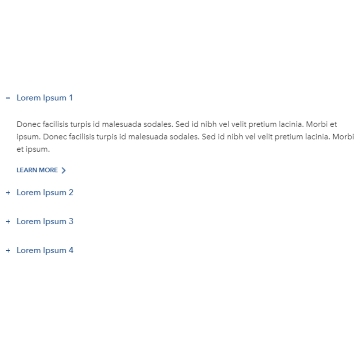
Replace with: Accordion | Border
-
Calendar | Events | Featured
Toggle More Info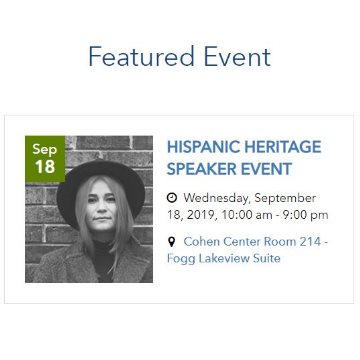
Replace with: Calendar | Events | List
-
Featured | 3 up | Circles
Toggle More Info
Replace with: Featured | Circle | Images
Improvements include:
- Additional control over circle sizes amount per row.
- Fixes 'egg' shape caused on laptops.
- Mobile display improved to keep small circles to the left of the text.
How do I know if I'm using this snippet?
Double click the snippet's title, if it jumps you to this accordion, you are using the wrong snippet.
Alternatively, read the title of the snippet to make sure it's using the correct snippet name.How do I replace the snippet if I have a lot of circles?
Please reach out to our marketing request form. We will assist with reformatting your snippet.
-
Featured | Multiple up | Circles
Toggle More Info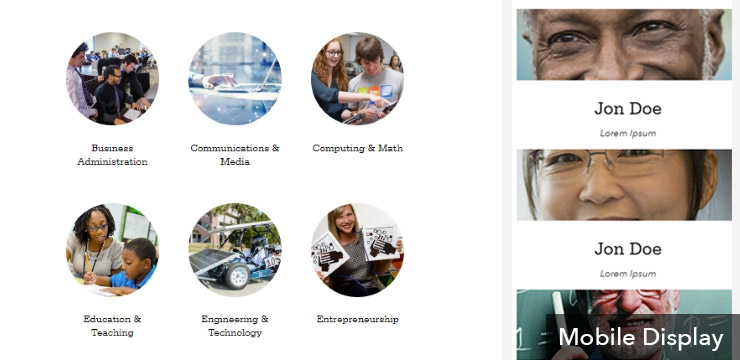
Replace with: Featured | Circle | Images
Improvements include:
- Easier to understand circle amount per row.
- Fixes 'egg' shape caused on laptops.
- Mobile display improved to keep small circles to the left of the text. (Instead of boxes cutting off tops of heads)
How do I know if I'm using this snippet?
Double click the snippet's title, if it jumps you to this accordion, you are using the wrong snippet.
Alternatively, read the title of the snippet to make sure it's using the correct snippet name.How do I replace the snippet if I have a lot of circles?
Please reach out to our marketing request form. We will assist with reformatting your snippet.
Removed Admin-Only Snippets
-
Billboard | Admin
Toggle More Info
Used for Designers to make fully customizable billboards in UMC
-
Container | Bootstrap
Toggle More InfoNO GRAPHIC
Used for making fully customizable layouts
-
Infographics | Buttons
Toggle More Info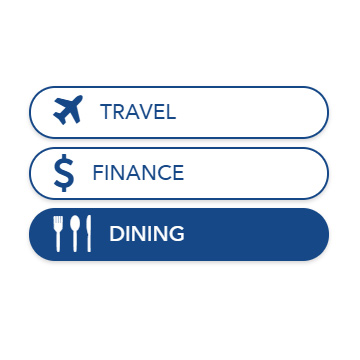
Description: Displays icons inside of buttons - used on HR Employee Perks Website
Instructions: Admin Only Use
-
Web Component | Backend | ASPX Code
Toggle More InfoOverview: Allows aspx code to be embedded. Most frequently this is used for embedding databases using C# rendered by aspx. This is usually installed by the web team and should not be touched.
Functionality: Open the source panel and paste the aspx code as instructed.
Additional: Use white space html encode to avoid line breaks which is due to the xsl output settings.