
CMS Versions
/ Tags: Editing, Versions, Compare, Revert
You can compare versions while viewing a checked-out page by clicking Versions in the tabs at the top of the page.
 Versions tab
Versions allow you to go back to a previous version of the page. Think of them as backups.
A new version is created whenever you publish a page to either webdev or production.
To make a manual version without publishing, you can click the dots next to publish and select 'Save Version':
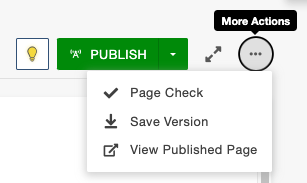 “More actions� dots
Reverting to a Previous Version
When inside of the versions tab, click the three dots to expand the menu:
 “More actions� dots
You have the option to 'View' that version or 'Compare' it to your current page.
When you find the one you want, click 'Revert'.
Comparing Versions
When you have a page checked out, compare two versions of a page to see what's been changed between them. You can compare the current state of the page to a previous version or to what is on your live website.
 Version example
Upon viewing versions, click the More Actions menu , click Compare dropdown.
- Select Page.
- View the marked changes on the page.
- Strikethrough (red) shows content that was removed.
- Underline (green) shows content that was added.
- Wavy underline (blue) shows formatting changes.
- Use the "Version Compare" options to go to different versions.
Share Post